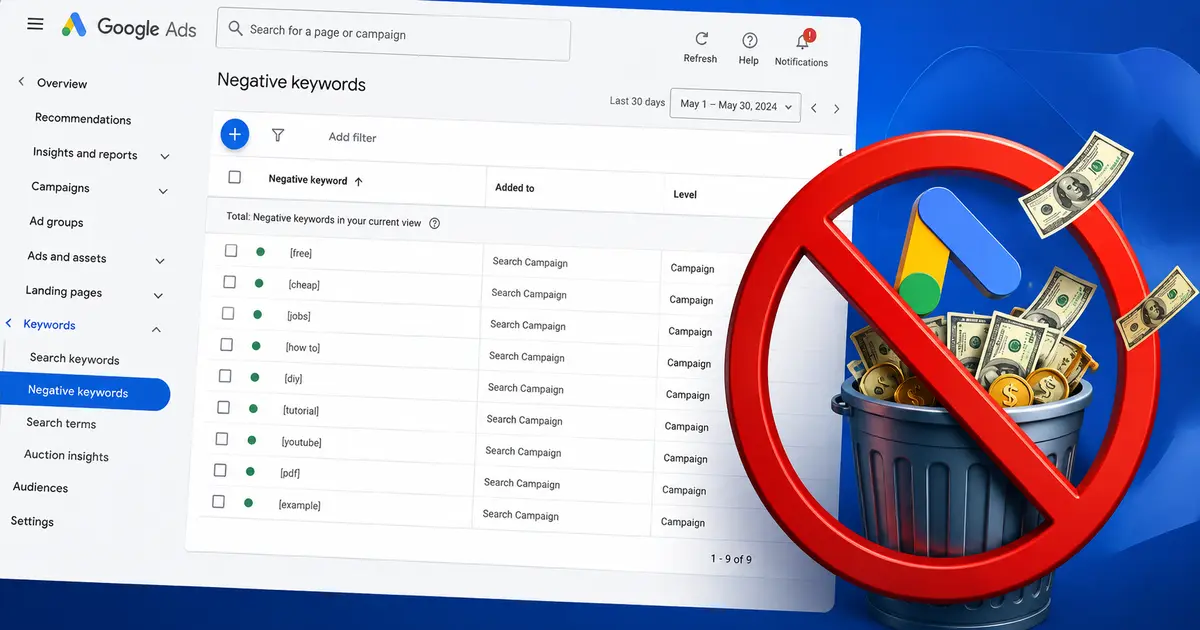
Pull up your search terms report right now. Somewhere in there is a query that has cost you real money and never once converted. Maybe it’s someone looking for a job at a company like yours. Maybe it’s a student researching a term paper. Maybe it’s someone hunting for a free version of something you charge for. Every one of those clicks came out of your budget.
Negative keywords fix this. They’re one of the simplest tools in Google Ads, and also one of the most neglected. Still setting up your account structure? Start with Google Ads for Beginners first, then come back here once campaigns are live and generating search data. This guide covers what negative keywords actually do, the three match types you need to understand before you touch your account, and a system for finding and adding negatives that keeps working long after you close this tab.
Table of Contents
What Are Negative Keywords in Google Ads?
Negative keywords are terms you tell Google Ads not to show your ads for. When someone’s search includes a negative keyword, your ad stays out of the auction entirely. They work at the account, campaign, and ad group level, and they’re the main lever for cutting spend on clicks that were never going to convert.
Think of them as the opposite of your keyword list. Your keywords tell Google which searches to chase. Your negatives tell Google which searches to leave alone. Both lists shape who sees your ad, and a campaign missing one of them is only half-targeted.
Google Ads gives you four places to apply negatives: a direct account-level setting, campaign-level, ad group-level, and shared lists you build once and apply wherever needed. Each one is covered in detail further down. Most accounts end up using a mix of all four.
How a Few Wasted Clicks Turn Into a Real Budget Problem
Google Ads runs on an auction. You pay per click, whether or not that click ever had a chance of converting. A single irrelevant click might only cost a few dollars. The problem is what happens next.
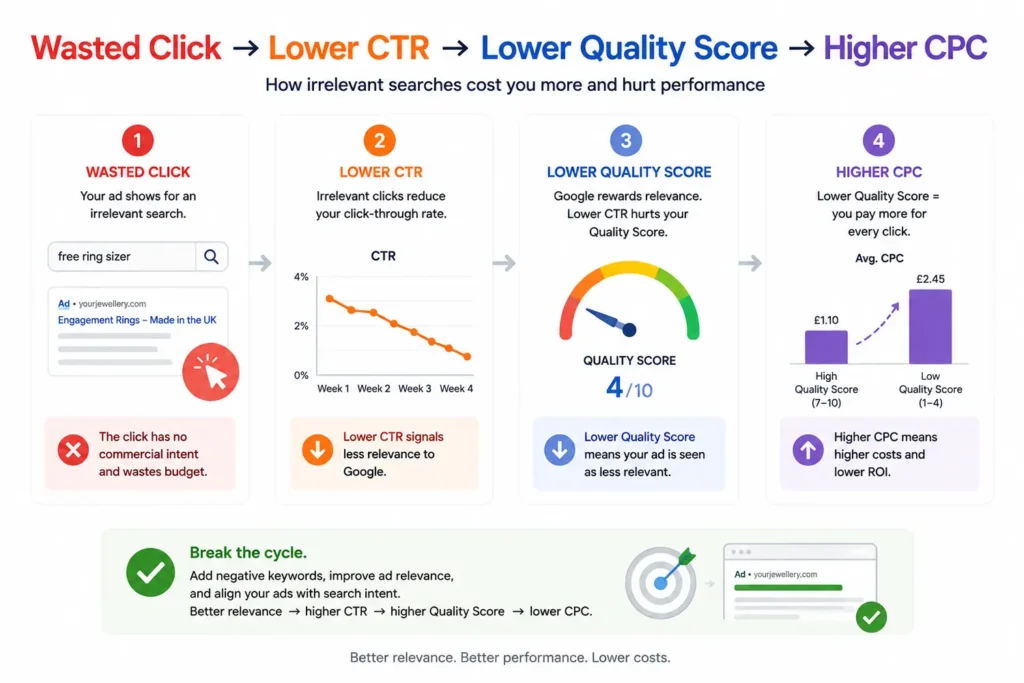
Irrelevant clicks drag down your click-through rate, since they generate impressions your ad was never going to win over. A lower click-through rate lowers your Quality Score. A lower Quality Score raises your cost per click on the searches that actually matter. So the damage isn’t just the wasted click itself. It’s every future click on your best-performing terms getting more expensive because of it.
Say a manager keyword like “project management software” pulls in searches for “project management software Wikipedia” or “free project management software for students.” Neither search has any buying intent, but both cost money and both dilute the click-through rate Google uses to judge your ad’s relevance. Multiply that across a few thousand impressions a month, and the account’s Smart Bidding data gets noisier too, since the algorithm is now learning from conversions mixed in with a pile of traffic that could never convert in the first place.
Here’s a number worth trusting over the vague “save 20 to 40 percent” claims that circulate in PPC content. PPC consultant Andrew Lolk ran a click-bucket analysis across real client accounts and found that negative keywords typically recover somewhere between 4 and 8 percent of total spend, not the 20 to 40 percent figure most guides repeat without a source. That’s still meaningful money on any account spending a few thousand dollars a month. It’s just not the dramatic number that gets shared around, and knowing the real figure keeps expectations honest.
The Three Negative Keyword Match Types
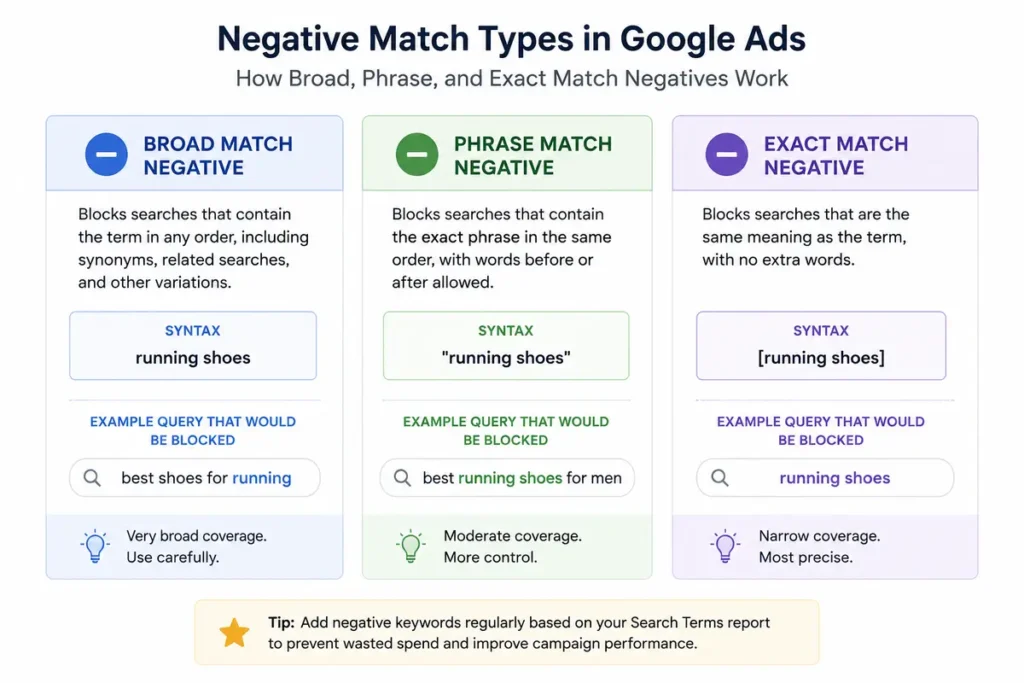
Negative keywords use the same match type system as regular keywords, but they behave differently, and getting this wrong either blocks too much traffic or too little.
Broad Match Negatives
This is the default when you add a negative keyword with no formatting. Despite the name, negative broad match is actually the most restrictive negative type. It blocks any search containing all the words in your negative keyword, in any order, but doesn’t block searches with extra words layered around them differently.
Add “free” as a negative broad match, and you’ll block “free trial software” and “software free download.” You won’t block “software for freelancers,” because “free” isn’t a standalone word there. This makes broad match negatives useful for catching obvious junk without accidentally torching adjacent good traffic, as long as you pick words carefully.
Phrase Match Negatives
Written in quotation marks, phrase match negatives block searches containing your exact phrase in that exact order, with other words allowed before or after. Add “software jobs” as a phrase negative, and you’ll block “remote software jobs” and “senior software jobs listings,” but not “jobs in software management,” because the word order doesn’t match.
Phrase match gives you more precision than broad match when you’re trying to block a specific concept without catching every loosely related search.
Exact Match Negatives
Written in brackets, exact match negatives block only that specific query, nothing more and nothing less. Add [software jobs] as an exact negative, and you’ll block only that exact search. “Software jobs near me” stays untouched.
Use exact match negatives for surgical strikes: a single high-cost, zero-converting query you’ve spotted in your search terms report and want gone without affecting anything else.
Most accounts lean on broad match negatives for general exclusions like “free” or “jobs,” phrase match for blocking a specific concept, and exact match for one-off problem queries. A layered approach like this gives you broad protection with room for precision where it matters.
How to Find Negative Keywords in Your Search Terms Report
The search terms report shows the actual queries that triggered your ads, which is different from your keyword list of what you’re bidding on. This is where negative keywords come from.
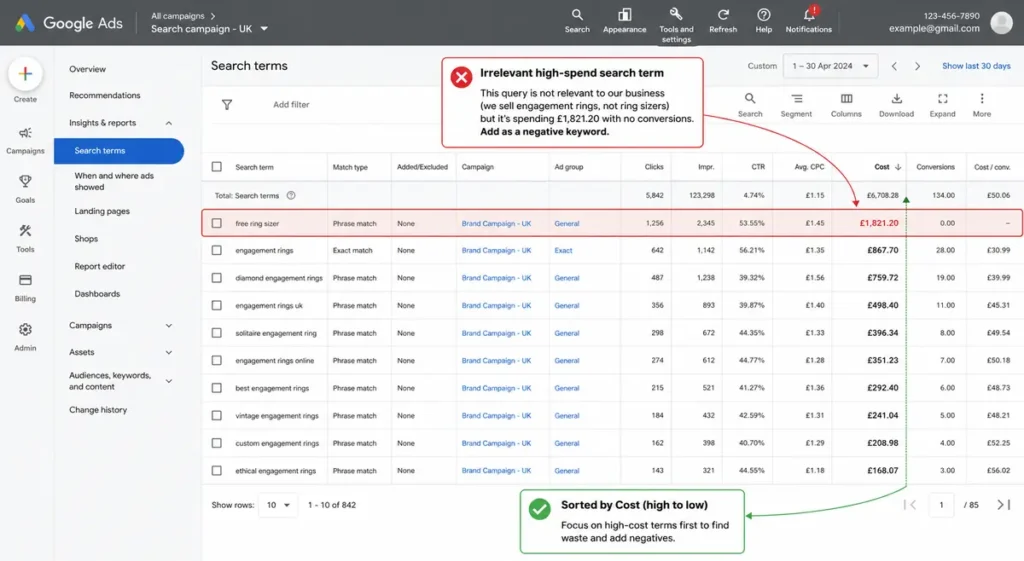
In Google Ads, open “Insights and reports,” then “Search terms,” or click “Keywords” and select the Search terms tab. Set the date range to at least 30 days for a high-traffic campaign, or 60 to 90 days if the account runs at lower volume.
Sort by cost, highest first. This surfaces the queries eating the biggest share of your budget, which is exactly where you want to start. Look for patterns rather than one-off outliers: repeated informational phrasing like “how to” or “what is,” price-sensitive terms like “cheap” or “discount” if you sell a premium product, or competitor brand names showing up outside a dedicated competitor campaign.
Not every irrelevant-looking term deserves to be blocked immediately. A query with three clicks and zero conversions might just need more data. A query with 20 or more clicks, meaningful spend, and zero conversions is a strong candidate for a negative right now. Statistical significance matters more than gut instinct here, so give lower-volume terms time before you cut them.
Where to Add Negative Keywords
Once you’ve identified a term to block, where you add it changes how it behaves across the account. Google Ads gives you four places to do this: account-level, campaign-level, ad group-level, and shared negative keyword lists.
Account-Level Negatives
Account-level negatives live under Admin, then Account Settings, then Negative Keywords, and they apply automatically to every relevant campaign in the account, no manual application needed. They cover search and shopping inventory across Search, Performance Max, App, Shopping, Smart, and Local campaigns, though not Display.
This is the right home for terms that should never trigger any ad anywhere in the account, like a competitor’s name or an obviously irrelevant category. You can add up to 1,000 negative keywords at this level, which is more than most accounts will ever need.
Campaign-Level Negatives
Campaign-level negatives apply to every ad group inside that campaign. This is the right choice for exclusions that should never trigger any ad in that campaign, regardless of which specific ad group someone might otherwise match. Terms like “free,” “jobs,” or “tutorial” typically belong here.
To add one, open the campaign, select Keywords, then Negative keywords, click the plus button, and make sure “Campaign” is selected before you paste your terms.
Ad Group-Level Negatives
Ad group-level negatives apply only to that ad group. This matters for traffic sculpting, where you run separate ad groups for related but distinct offers. A campaign with a “management” ad group and a “consulting” ad group might add “consulting” as a negative in the management ad group, and vice versa, so each search lands in the ad group built to answer it.
Shared Negative Keyword Lists
For accounts running multiple campaigns, a shared negative keyword list saves hours of repeated work. Build the list once under Tools and Settings, then Shared Library, then Negative Keyword Lists, and apply it across every relevant campaign. Update the list once, and every campaign using it inherits the change automatically.
Organize shared lists by theme rather than dumping everything into one giant catch-all. A “Job Seekers” list, a “Free and DIY” list, and a “Competitor Brands” list each stay easy to maintain and easy to hand off to a teammate.
A Starter Negative Keyword List for Most Accounts
Before a new campaign goes live, seed it with a baseline negative list built from known low-intent patterns. This isn’t a complete list for your business, but it’s a solid starting point for most B2B and service-based accounts:
- Job-related terms: jobs, careers, hiring, salary, resume, internship
- Free and DIY terms: free, cheap, discount, DIY, template, tutorial
- Research and definition terms: what is, definition, meaning, Wikipedia
- Platform noise: Reddit, YouTube, reviews (unless you actively want informational traffic here)
- Competitor brand names, unless you’re deliberately running a competitor bidding campaign
Every day a new campaign runs without a seed list is a day of funding clicks you already know are irrelevant. Build it before launch, not after the first invoice arrives.
The Mistake That Costs More Than Doing Nothing
Over-blocking is worse than under-blocking, because it hides its own damage. Add “management” as a negative because a few irrelevant management searches showed up, and you’ll also block “project management software,” “Google Ads management,” and every other relevant term containing that word. The account looks efficient because impressions drop, but qualified traffic drops with it, and nobody notices until pipeline slows down weeks later.
Before adding any broad match negative, ask what legitimate searches might contain that word. If there’s any real chance a good lead searches that phrase, start with phrase or exact match instead, and widen it later once you’ve confirmed the scope is safe.
How Often You Should Review Your Negative Keywords
Negative keywords aren’t a one-time setup task. Campaigns drift as broad and phrase match expansion pulls in new queries over time, so the list needs upkeep.
For accounts spending $3,000 or more a month, review the search terms report weekly. That much spend generates new irrelevant patterns fast, and letting a week’s worth of waste accumulate adds up quickly. For accounts spending under $1,000 a month, a biweekly check is usually enough. Very low-spend accounts can often get by on a monthly pass, though checking more often never hurts.
Block time on the calendar for it. Twenty minutes every Monday, filtered to the last seven days and sorted by cost, catches most new waste before it becomes expensive. Track your cost per conversion over time too. A steady decline as you keep adding negatives is the clearest sign the work is paying off.
FAQ
How many negative keywords should a Google Ads account have?
There’s no fixed target. A mature B2B account might run hundreds of negatives across shared lists and campaigns, while a small local account might only need a few dozen. What matters is consistent review, not hitting a specific count.
Do negative keywords affect Quality Score directly?
No. Google excludes negative keywords from Quality Score calculations. The indirect effect still matters, though: cleaner negatives raise your click-through rate by removing irrelevant impressions from the mix, and that does improve Quality Score over time.
What’s the difference between a negative keyword list and a campaign-level negative?
A negative keyword list is a shared list you build once and apply to multiple campaigns at the same time. A campaign-level negative applies only inside that one campaign. Use shared lists for exclusions that should apply everywhere, and campaign-level negatives for exclusions specific to one campaign’s intent.
Can I set negative keywords at the account level?
Yes. Google Ads has a direct account-level negative keyword setting under Admin, then Account Settings, then Negative Keywords. It applies automatically across Search, Performance Max, App, Shopping, Smart, and Local campaigns, no manual application to each campaign needed. Shared lists are still worth using alongside it when you want a specific theme applied only to some campaigns rather than the whole account.
Negative keywords are one piece of a much bigger picture. Paid ads work best connected to SEO, content, and the rest of your marketing mix, and our guide to starting your digital marketing plan from scratch is a good place to see how it all fits together.