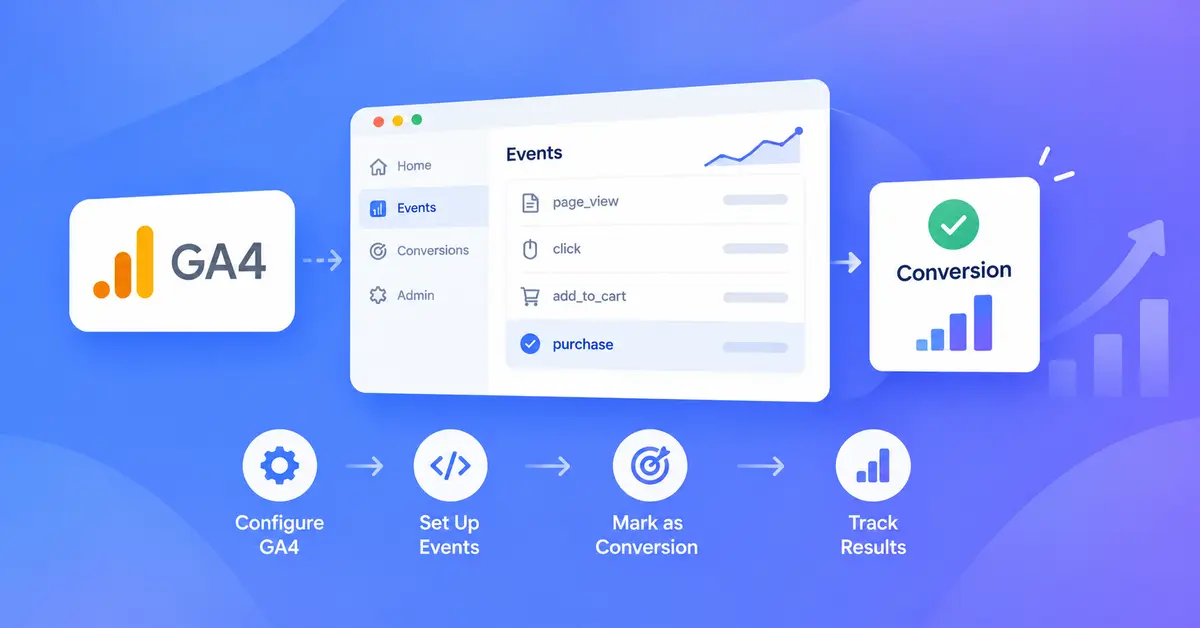
Open GA4 looking for the Conversions menu and you will not find it. Google renamed conversions to key events in 2024, and some popular guides still send readers to a menu that no longer exists.
This guide walks you through conversion tracking in GA4 the current way. You will decide what to track, create the events, mark them as key events, test them, and send the ones that matter to Google Ads. Install GA4 first. Our GA4 beginner’s setup guide covers that part.
Table of Contents
What Is Conversion Tracking in GA4?
Conversion tracking in GA4 means recording the website actions that matter to your business, such as a lead form submission, a purchase, or a booking. In GA4 you do this with key events. You pick an event that measures the action, then mark it as a key event so it shows up in your reports.
Everything in GA4 is an event. A page view is an event. A scroll is an event. A key event is simply an event you have told GA4 to treat as important. Every purchase, booking, and lead you measure starts that way.
What Is the Difference Between Key Events and Conversions in GA4?
A key event in GA4 is any event you mark as important to your business, such as a lead form submission or a purchase. Google renamed GA4 “conversions” to “key events” in 2024. The word “conversion” now refers to a key event you share with Google Ads to measure and optimize ad campaigns.
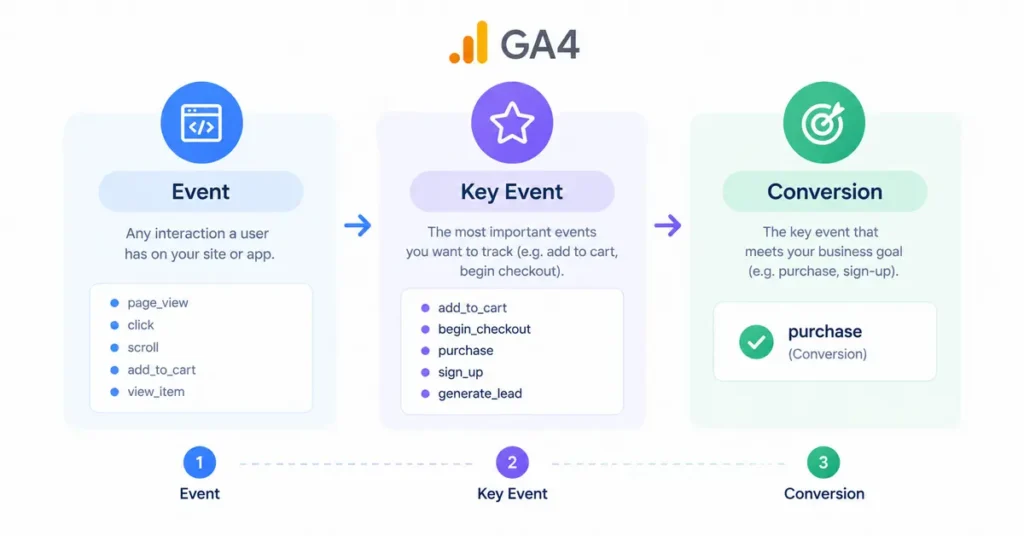
Google’s key events documentation describes the relationship as a simple chain: Event > Key Event > Conversion.
| Term | What it is | Where you see it |
|---|---|---|
| Event | Any interaction GA4 records | Reports > Engagement > Events |
| Key event | An event you marked as important | The Key events column across GA4 reports |
| Conversion | A key event shared with Google Ads for campaign measurement and bidding | Google Ads, and the Advertising section of GA4 |
You do not need to redo anything if you set up conversions before the change. GA4 carried your old conversions over as key events automatically, and your historical data is still there.
What Do You Need Before You Start?
Three things need to be in place.
- GA4 installed and collecting data. Check the Realtime report to confirm. Not set up yet? The install steps in our beginner’s guide take about one sitting.
- The right access level. Google requires the Editor role or above to mark an existing event as a key event. Buttons grayed out? Ask an account admin to raise your role.
- A clear idea of what “success” means for your site. That decision matters more than any setting.
How Do You Setup Conversion Tracking in GA4?
In GA4, you track conversions by creating or finding an event that measures the action you care about, such as a form submission. Then go to Admin > Data display > Events and mark it as a key event. Test it in DebugView before you trust the numbers.
The full process takes seven steps:
- Decide which actions to track.
- Check what GA4 already tracks.
- Create the event.
- Mark the event as a key event.
- Set the counting method and value.
- Test it before you trust it.
- Send key events to Google Ads (optional).
Step 1: Decide Which Actions to Track
Pick the handful of actions that tie directly to revenue. According to Google, a standard GA4 property allows up to 30 key events, and Analytics 360 properties allow 50. In my experience, most small businesses need fewer than five. Start with the one or two that bring in money, then add more later.
| Business type | Good key events | Usually not worth marking |
|---|---|---|
| Lead generation | Form submission, thank-you page view, click to call | Scrolls, time on page |
| Ecommerce | purchase, begin_checkout | Product page views |
| Local service | Booking confirmation, click to call, directions click | Blog visits |
| SaaS or membership | sign_up, trial start, paid upgrade | Homepage views |
Run one test on every candidate. Would your business be better off if this number doubled? A clear yes makes it a key event. A “sort of” means leave it out.
Step 2: Check What GA4 Already Tracks
GA4’s enhanced measurement tracks several useful actions with no code, including outbound clicks, file downloads, and form interactions. Google lists two form events: form_start fires the first time someone interacts with a form in a session, and form_submit fires when someone submits one.
To check it is on, go to Admin > Data collection and modification > Data streams. Click your web stream and make sure the Enhanced measurement switch is on. The settings cog lets you turn individual options on or off.
One caution from real setups. The built-in form_submit event works for a quick start, but it can fire on submissions that fail validation, and it can miss forms that submit without reloading the page. For a lead form that drives your business, a dedicated event (Step 3) gives you cleaner numbers.
Step 3: Create the Event
Choose the method that matches your site.
Option A: Your form has a thank-you page (no code)
This is the easiest and most reliable way to track form submissions in GA4. GA4 creates a new event whenever someone lands on your confirmation page. Google documents these steps:
- Go to Admin > Data display > Events.
- Click + Create event.
- Enter an event name, for example
generate_lead. - Under Choose how to create an event, select Create without code.
- Choose
page_viewfrom the event name dropdown. - Enter your thank-you page URL in the URL field.
- Click Create.
This method needs no developer and no code changes. Test it right away (Step 6), because a typo in the URL field means the event never fires.
Option B: No thank-you page, or you want to track clicks
Use Google Tag Manager or your site’s code. In Tag Manager, create a Google Analytics: GA4 Event tag, give it an event name such as generate_lead, and attach a trigger for the action.
Click-to-call tracking works the same way. Add a Click – Just Links trigger where the Click URL starts with tel:. None of the top-ranking guides we reviewed cover this, and phone calls are the lead source many local businesses care about most.
With gtag.js on the page, the event looks like this:
gtag('event', 'generate_lead', { value: 50, currency: 'USD' });Keep event names under 40 characters. Google’s event limits page says that if you mark an event as a key event and its name runs longer, GA4 will not report it as a key event. Short, clear names like generate_lead avoid the problem.
Step 4: Mark the Event as a Key Event
This is the step that turns tracking into conversion tracking.
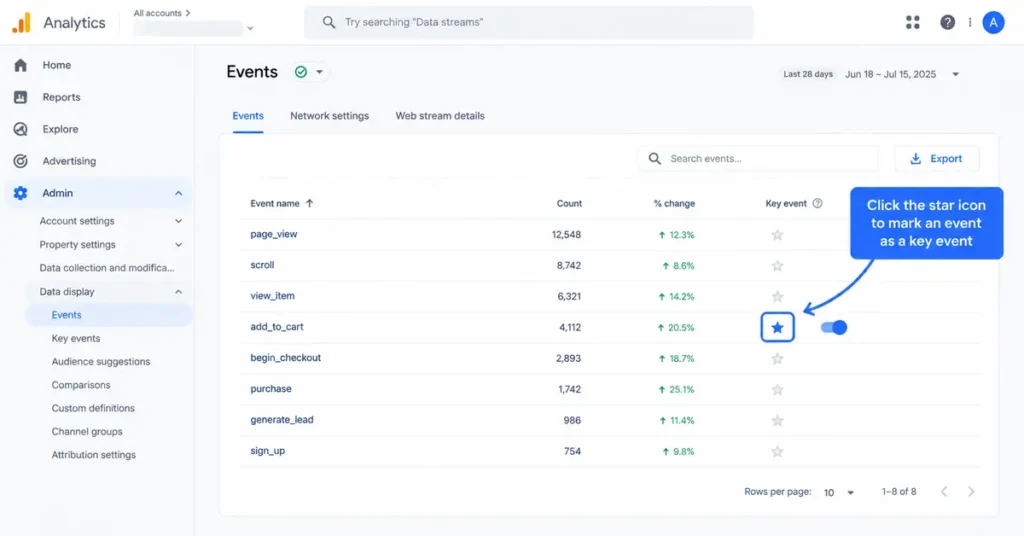
For an event GA4 has already received: go to Admin > Data display > Events, find the event, and click the star icon next to it. Google’s guide to marking events as key events shows the same path.
For a brand-new event: click + Create event, enter the name, and switch on Mark as key event before you save. With Option A, you can flip that toggle in the same window.
GA4 does not change old data when you mark an event. Google says it affects reports from the time you mark it, and standard reports can take up to 24 hours to show it.
Step 5: Set the Counting Method and Value
Every key event has two settings worth a minute of your time.
How GA4 Counts Key Events
Google offers two counting options:
- Once per event (Recommended): counts every time the action happens. Five form submissions in one session count as five.
- Once per session (Legacy): counts the action once per session, no matter how often it happens.
Google recommends once per event because it reflects real user behavior. Once per session still makes sense for actions that should only count once, such as a lead form someone might submit twice by accident. To change it, open the Key events tab, click the three-dot menu on the row, and choose Change counting method. The change applies to future events only. Google requires the Marketer role or above to choose a counting method.
How to Set a Value
Give each key event a monetary value so GA4 can show which channels bring in money, not just actions. Send a numeric value with a currency code in ISO 4217 format, such as USD, EUR or GBP. When you create the event in the GA4 screen, you can also set a default key event value.
Here is a quick way to pick a lead value. Say you close one in five leads and the average sale is $250. Each lead is worth about $50. That is an example, so use your own numbers.
Google’s documentation is clear on one catch. A missing or invalid currency does not stop GA4 from counting the event, but GA4 will not send the value to Google Ads.
Step 6: Test It Before You Trust It
Never assume a new key event works. Test it.
- Turn on debug mode with Google Tag Assistant or Tag Manager’s preview mode.
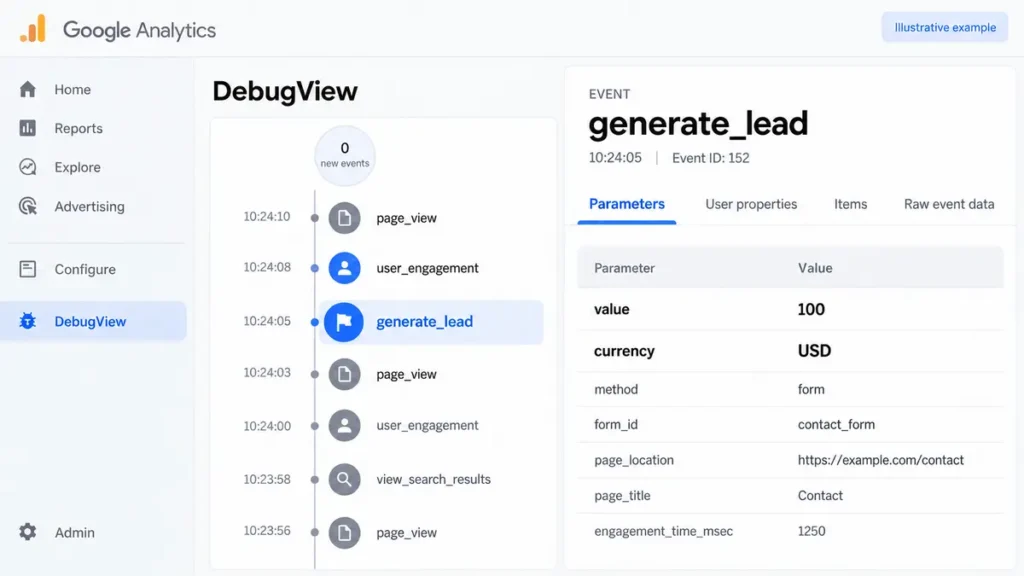
- Go to Admin > Data display > DebugView.
- Submit your own form or complete the action on your site.
- Watch for your event in the stream, then click it to check its event parameters, including value and currency. Confirm three things: the name matches, the value is right, and the event fires once per submission.
The Realtime report gives you a fast first check, and standard reports can lag by up to 24 hours. DebugView hides events when your site uses consent mode and the visitor has not agreed to Analytics cookies. That includes you, so accept cookies on your own site while you test.
Set up an internal traffic filter in Admin as well. Your test submissions will otherwise look like real leads in live reports.
Step 7: Send Key Events to Google Ads (Optional)
Do you run Google Ads? Share your key events with it so your campaigns can measure and bid on real outcomes. New to paid search? Our Google Ads for beginners guide walks through your first campaign.
Link your Google Ads account to GA4 first. Then create a Google Ads conversion from the key event, either in GA4 or in Google Ads. Once you share it, it appears as a conversion in the Advertising section of GA4, where the Conversion performance report shows how it performs.
One detail trips up many marketers. Google Ads conversions do not appear in standard GA4 reports. Your key events do. That split causes most of the “why don’t my numbers match?” questions.
Where Can You See Conversion Data in GA4?
Reports that used to show a Conversions column now show Key events instead. Open the report you already use, such as your traffic acquisition report, and look for that column first. For deeper analysis, build an exploration with the Key events and Session key event rate metrics. You can then compare channels, landing pages, and devices by how often they produce a result, not just how much traffic they bring.
Pair that with query data from Google Search Console. Search Console shows which searches bring people to a page. GA4 shows which of those visitors act. When a page earns traffic but no key events, optimize the post after publishing with a clearer next step.
What Mistakes Break GA4 Conversion Tracking?
These are the problems that show up most often when you audit a GA4 property.
page_viewmarked as a key event. Every page view on the site then counts as a conversion. Create a separate event for your thank-you page instead.- Too many key events. Marking scrolls, video plays and every click buries the numbers that matter. Remember the cap of 30.
- A missing currency code. The event counts, but its value never reaches Google Ads.
- Event names over 40 characters. The key event silently fails to report.
- No historical data. Key events only count from the day you mark them.
- Test traffic in live reports. Your own form tests look like real leads until you filter them out.
- The wrong report. Google Ads conversions live in the Advertising section, not in standard reports.
Frequently Asked Questions
Where did conversions go in GA4?
Google renamed them key events in 2024. You will find them under Admin > Data display > Events, in the Key events tab. Your old conversions carried over automatically, and your historical data is still available as key event data.
What is the difference between key events and conversions?
A key event is any GA4 event you mark as important to your business. A conversion is a key event you share with Google Ads to measure and optimize ad campaigns. Every conversion starts as a key event, but not every key event becomes a conversion.
How many key events can I have in GA4?
Standard GA4 properties allow up to 30 key events, and Analytics 360 properties allow 50. Most small businesses only need three to five. Fewer, more meaningful key events make your reports easier to read and act on.
Why are my key events not showing in GA4?
Standard reports can take up to 24 hours to show a new key event, and marking an event does not add historical data. Check DebugView to confirm the event fires. Then make sure the event name is under 40 characters.
Should I count key events once per event or once per session?
Google recommends once per event for most key events because it reflects real behavior. Use once per session for actions that should only count once per visit, such as a lead form a visitor might accidentally submit twice.
Can I track phone calls as key events in GA4?
Yes, for click-to-call links. Create an event that fires when someone clicks a link starting with tel:, usually through Google Tag Manager, then mark it as a key event. This tracks the click, not whether the call connected.
Next Step
Clean conversion tracking makes every other marketing decision easier, from ad budgets to page redesigns. Start with one key event, test it in DebugView, and add more only when each one earns its place. Questions about your own setup? use the Rankiwis contact page.