Connect Google Search Console to GA4 and you can see which searches lead to engaged visitors, leads and sales, all in one place. GA4 shows what people do on your site. Search Console shows what they typed into Google before they arrived.
The setup takes a few minutes. But there’s one setting people often miss, and without it the reports never appear. This guide covers the full process, including that step.
What Happens When You Connect Search Console to GA4?
A link between Google Search Console and GA4 adds two reports to your GA4 property. Google Organic Search Queries shows the searches your site appeared for, with clicks, impressions, click-through rate and average position. Google Organic Search Traffic shows your landing pages with both Search Console and GA4 metrics side by side.
That second report is the useful one. It puts Google’s search data next to what visitors did after they landed, such as how long they stayed and whether they completed a key event. Our guide to conversion tracking in GA4 explains how to set those up.
What Do You Need Before You Link Them?
According to Google’s Analytics Help, you need three things in place.
- The Editor role on your GA4 property. Without it, you can’t create the link.
- Verified owner status in Search Console. You can complete verification during the linking process if you haven’t already. New to the tool? Our guide to using Google Search Console covers verification step by step.
- Both tools tracking the same site. Your GA4 data stream and Search Console property need to cover the same set of pages.
Not set up GA4 yet? Start with our GA4 setup guide and come back once data is flowing.
How Do You Connect Search Console to GA4?
In GA4, go to Admin, then Search Console Links under Product links. Click Link, choose your Search Console property, confirm, then select your web data stream and submit. Next, publish the Search Console collection from the Library. Data appears within about 48 hours.
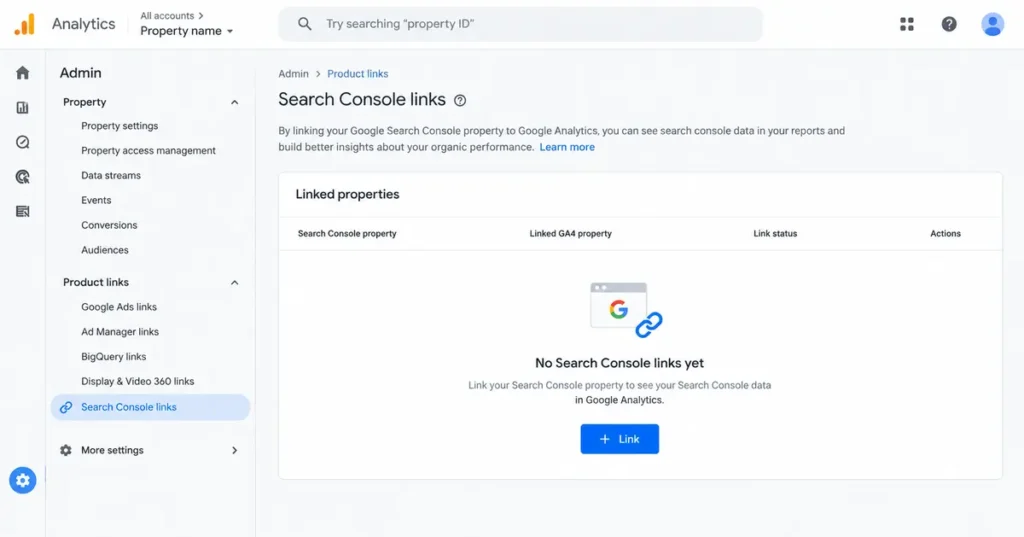
Here are Google’s steps in full, in order:
- In GA4, open Admin.
- Under Product links, click Search Console Links.
- In the link table, click Link.
- In the row “Link to Search Console properties I manage”, click Choose accounts and select the Search Console property you want.
- Click Confirm, then Next.
- Select the web data stream for your site.
- Click Next, review your settings, and submit.
That creates the link. Google also lets you start the same link from inside Search Console if you prefer.
Why Aren’t the Search Console Reports Showing in GA4?
Because GA4 hides them by default. Many people miss this step.
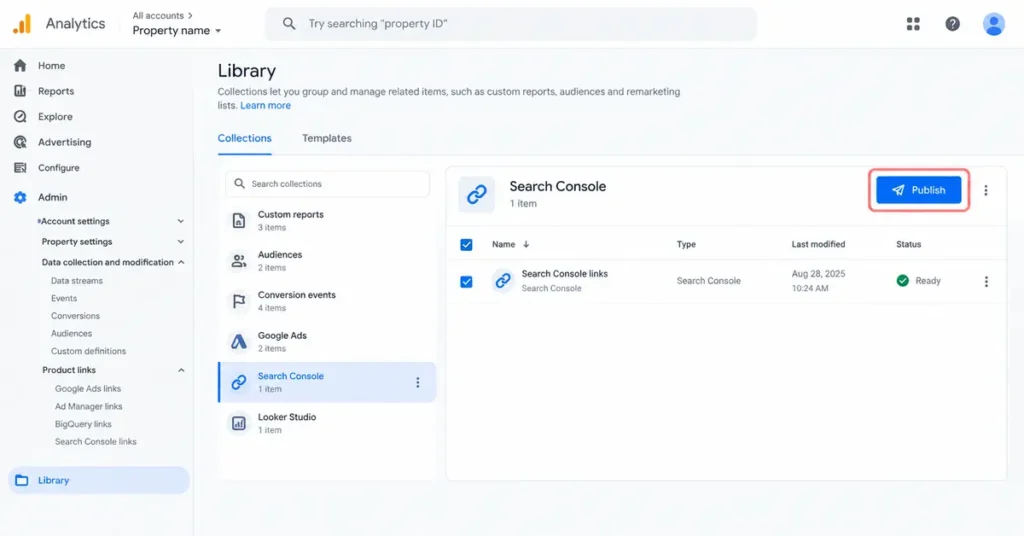
Google’s documentation states that the Search Console collection of reports is unpublished by default. To make it visible:
- In GA4, open the Library in the left-hand navigation.
- Find the Search Console collection.
- Open its menu and choose Publish.
The reports now appear in your left-hand navigation. Publishing changes nothing about your data. It only decides what shows in the menu.
How Long Does Search Console Data Take to Show in GA4?
Google says Search Console data becomes available in GA4 48 hours after Search Console collects it. Some guides quote 24 hours, so don’t panic if the reports look empty on day one.
Two more timing rules from Google are worth knowing:
- Data starts from the later date. Verified Search Console first and created the GA4 data stream afterward? Data starts from the day you created the stream. Created the stream first? Data starts from the day you verified the site.
- History caps at 16 months. Search Console keeps 16 months of data, so the GA4 reports never show more than that.
What Can You Do With the Linked Reports?
More than before, but less than people expect. Google is specific about the limits.
| You can | You can’t |
|---|---|
| See search queries with clicks, impressions, CTR and average position | Break query data down by GA4 dimensions such as channel or campaign |
| See landing pages with Search Console and GA4 metrics together | Combine Search Console metrics with any GA4 dimension except Landing page, Device and Country |
| Filter landing page data by Country and Device | View Search Console data as a time-series chart in these reports |
| See up to 16 months of search history | Link one data stream to more than one Search Console property |
| Switch to a different data stream by deleting the link and creating a new one | Edit an existing link |
Need charts over time or more flexible blending? Google’s own documentation points to the free Looker Studio Search Console connector. It suits monthly reporting and trend charts.
How Do You Use the Data Once It’s Linked?
Start with the Google Organic Search Traffic report and sort by landing page. Three quick checks pay off almost every time:
- Pages with lots of impressions but few clicks. Your listing shows up but doesn’t get chosen. A rewritten page title and meta description often lift click-through rate.
- Pages with plenty of clicks but no key events. Search sends the right people, and the page doesn’t convert them.
- Pages with strong engagement but low impressions. Good content that Google rarely shows. These are candidates for internal links and refreshed copy.
Common Problems and How to Fix Them
| Problem | Likely cause | Fix |
|---|---|---|
| No Link button | You don’t have the Editor role in GA4 | Ask a GA4 administrator to upgrade your access |
| Your site isn’t in the list | You aren’t a verified owner in Search Console | Verify ownership, or verify during the linking flow |
| Reports missing from the menu | The collection is unpublished | Publish it from the Library |
| Reports are empty | Data takes 48 hours, and it only starts from the later of verification or stream creation | Wait two days, then check the start date rule |
| Search Console clicks don’t match GA4 sessions | The tools measure different things | Expect a gap. Google counts the click, but GA4 needs its tag to load and, where required, consent |
Frequently Asked Questions
Why can’t I see Search Console reports in GA4?
GA4 keeps the Search Console report collection unpublished by default, so the link can work while the reports stay hidden. Open the Library, find the Search Console collection and publish it. The two reports then appear in your left-hand menu.
How long does Search Console data take to show in GA4?
Google says the data is available 48 hours after Search Console collects it. Data also only starts from the later of two dates: the day you verified your site, or the day you created your GA4 data stream. Older history won’t appear.
Why can’t I link Search Console to GA4?
You need the Editor role on the GA4 property and verified owner status in Search Console. Either one missing blocks the link. You can verify site ownership during the linking process, but GA4 access has to come from an administrator on that property.
Can I link more than one Search Console property to GA4?
No. Google allows one web data stream to link to only one Search Console property, and one Search Console property to link to only one web data stream. To switch properties, delete the existing link and create a new one with the right pairing.
Why don’t Search Console clicks match GA4 sessions?
They measure different things. Search Console counts a click on your listing in Google. GA4 records a session only when its tag loads on your page and, where consent rules apply, the visitor allows analytics. Slow pages, ad blockers and declined consent all widen the gap.
Can I connect them from the Search Console side?
Yes. Google lets you create the link from either GA4 or Search Console. GA4 is usually the simpler place to start, because you choose the exact web data stream as part of the steps. You still need to publish the reports either way.
Next Step
Linking the two tools takes a few minutes, and the payoff lasts. Connect them today, publish the reports, and check back in two days. Then pick one landing page with strong impressions and weak clicks, and fix its title. Want a second pair of eyes on your own setup? Contact Rankiwis team.