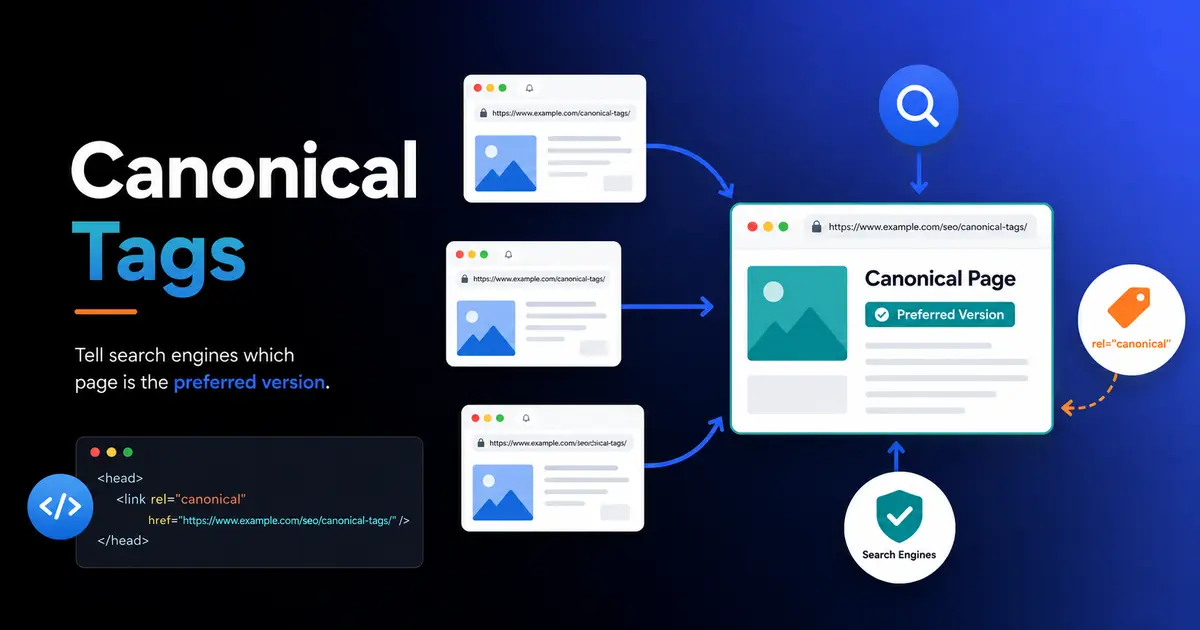
You publish one product page. Your WordPress site quietly serves it at three different URLs: with a trailing slash, without one, and again through a category filter. Google sees three separate pages competing for the same rankings, and none of them win as clearly as the single page could have on its own.
This is the exact problem a canonical tag solves, and it’s one of the most common points of confusion in technical SEO. It’s a small piece of code with an outsized job: telling search engines which version of a page counts as the real one.
WordPress websites, online stores, and blogs with tag archives create duplicate URLs constantly, often without anyone noticing. This guide covers what a canonical tag actually does, the specific situations where you need one, how to add one in WordPress, and the mistakes that quietly undo the whole effort.
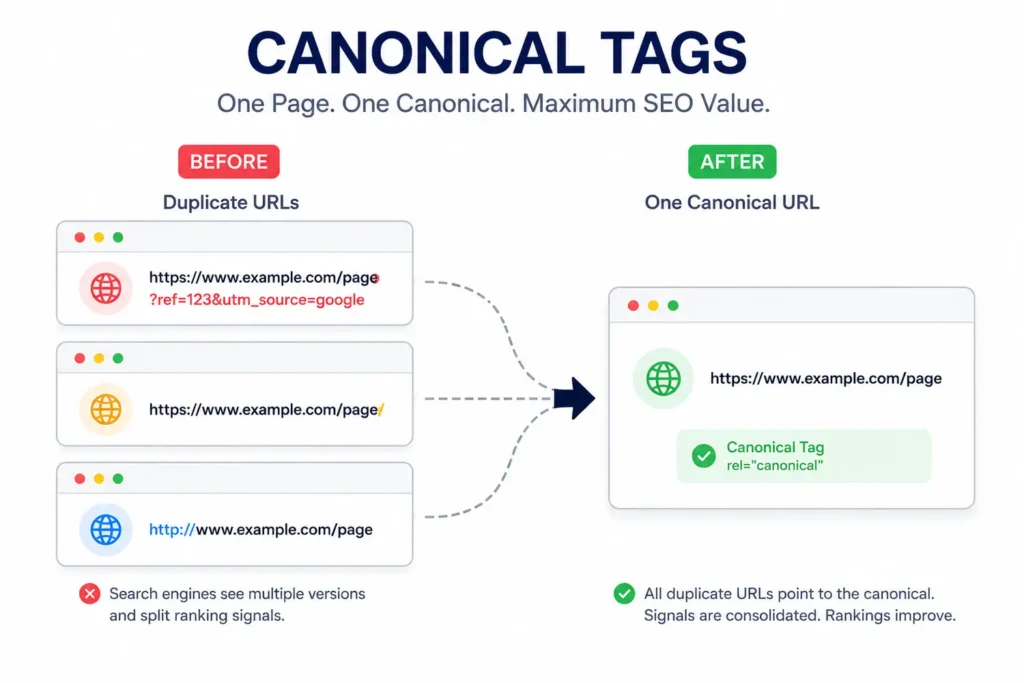
What Is a Canonical Tag?
A canonical tag is an HTML element, written as <link rel="canonical" href="..." />, placed in a page’s <head> section. It tells search engines which URL among a group of duplicate or near-duplicate pages should count as the primary version for indexing and ranking. Every other version defers its ranking signals to that one URL.
Search engines don’t delete duplicate pages. Users can still visit them, and they still technically exist. The tag simply tells Google and other engines to fold ranking signals like backlinks and search visibility into one preferred URL instead of splitting them across several.
A basic canonical tag looks like this:
<link rel="canonical" href="https://www.example.com/blue-widget/" />Two details matter here. The URL needs to be absolute, including the protocol and domain, not a relative path like /blue-widget/. And only one canonical tag should exist per page. Add two, and search engines ignore both.
Why Canonical Tags Matter for SEO
Google has said that roughly a quarter to a third of all content on the web is some form of duplicate content, and it doesn’t treat that as an automatic penalty. The real cost isn’t a penalty. It’s dilution.
When the same content lives at multiple URLs, backlinks pointing to those different versions split their value instead of stacking on one page. Search engines also have to spend crawl time visiting near-identical pages instead of discovering new or updated content. And without a clear signal from you, Google picks a canonical version on its own, which isn’t always the URL you’d choose.
A canonical tag fixes all three problems at once. It consolidates link equity onto a single URL, tells crawlers which version to prioritize, and gives you control over which page shows up in search results instead of leaving that decision to guesswork. Alongside title tags and header structure, it’s one of the quieter on-page SEO elements that rarely gets attention until it’s missing.
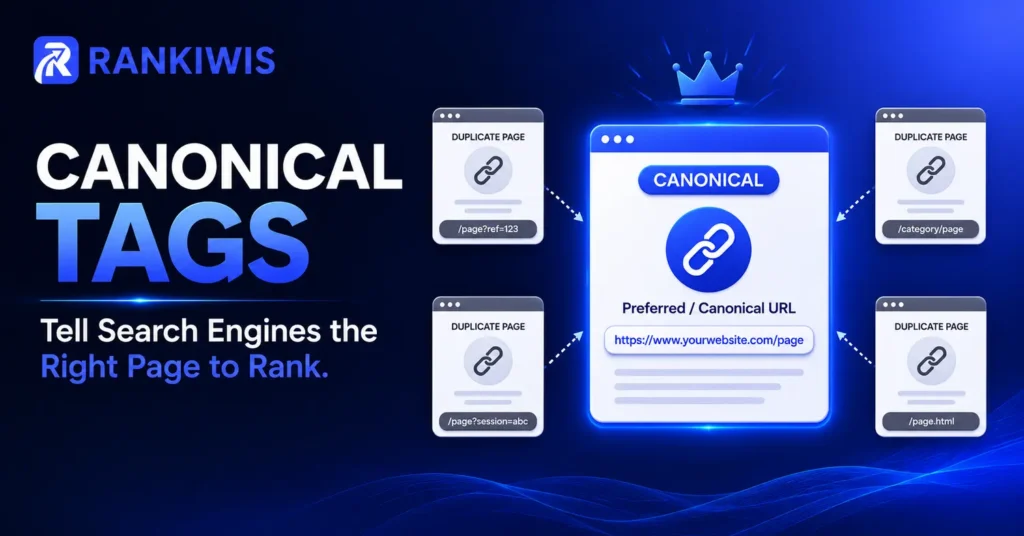
How a Canonical Tag Actually Works
A canonical tag is a strong signal, not a directive. Google can override it if it believes a different URL genuinely serves searchers better, though this rarely happens when the tag is implemented correctly and the pages in question are truly similar.
Search engines weigh a few signals when deciding which URL to treat as canonical, and Google’s own documentation ranks them by strength. A permanent redirect is the strongest signal available, since it removes the old URL from consideration entirely. A rel=”canonical” tag comes next, and it’s the most practical option when you need duplicate URLs to stay live. Sitemap inclusion carries the least influence on its own, though it reinforces whichever URL you’ve already marked as canonical elsewhere.
It’s also standard practice to add a self-referencing canonical tag to every page, even ones with no known duplicates. A page pointing its canonical tag at itself removes any ambiguity for search engines and costs nothing to implement. Most modern CMS platforms, including WordPress with an SEO plugin installed, do this automatically.
When to Use a Canonical Tag
Not every page needs manual intervention. Canonical tags earn their place in specific, recurring scenarios. Here’s where they show up most often:
| Situation | What’s Happening | Canonical Target |
|---|---|---|
| URL parameters (filters, sorting, tracking codes) | The same page loads under ?color=blue, ?utm_source=, or similar query strings | The clean URL without parameters |
| HTTP vs. HTTPS, www vs. non-www, trailing slash | The same content is reachable under multiple URL formats | Your one preferred, consistent format |
| Syndicated or republished content | An article appears on a partner site, or twice on your own site | The original source page |
| Ecommerce product variants | The same product sits in multiple categories or color/size combinations | The main product page |
| Print-friendly or alternate-format pages | A stripped-down version of a page exists purely for printing or export | The standard web page |
A few of these deserve a closer look. Paginated series, for instance, are more nuanced than they first appear. Google no longer expects rel=”prev” and rel=”next” markup, and paginated pages generally shouldn’t canonicalize back to page one. Give each page in a paginated series its own self-referencing canonical tag instead, since each page holds genuinely different content.
How to Add a Canonical Tag in WordPress
Most WordPress sites already have a way to manage this without touching code.
Using Yoast SEO
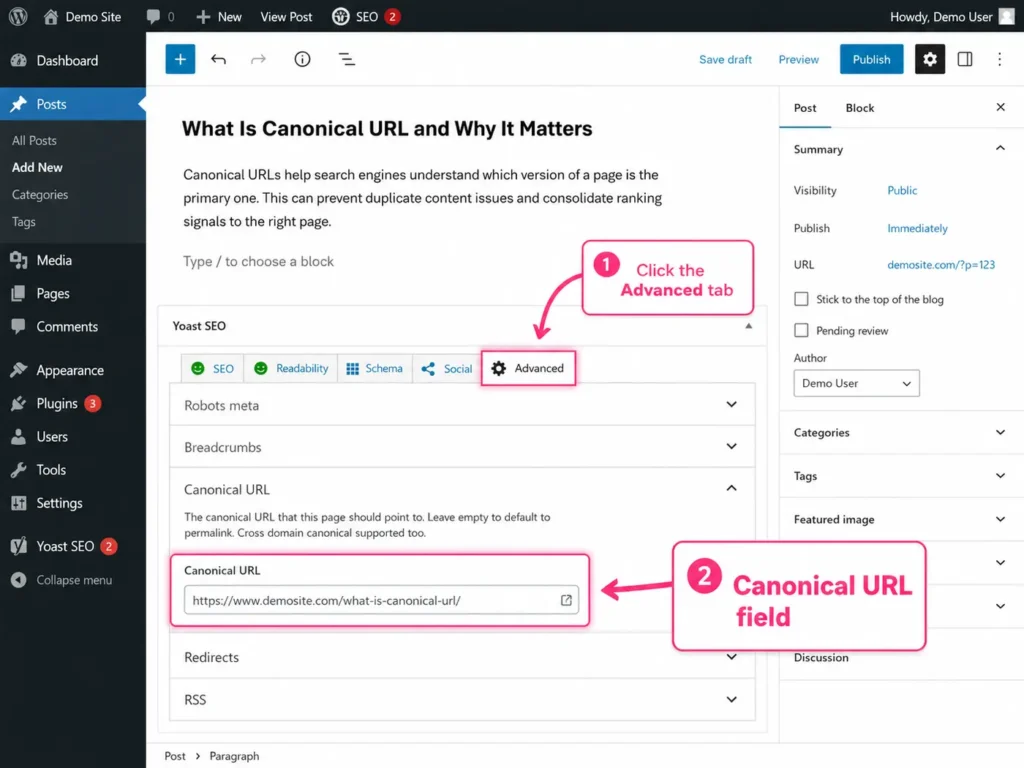
Open the page or post in the editor and scroll to the Yoast SEO panel. Click “Advanced,” and you’ll find a Canonical URL field. Paste the full URL you want search engines to treat as primary, save, and Yoast handles the rest.
Using Rank Math
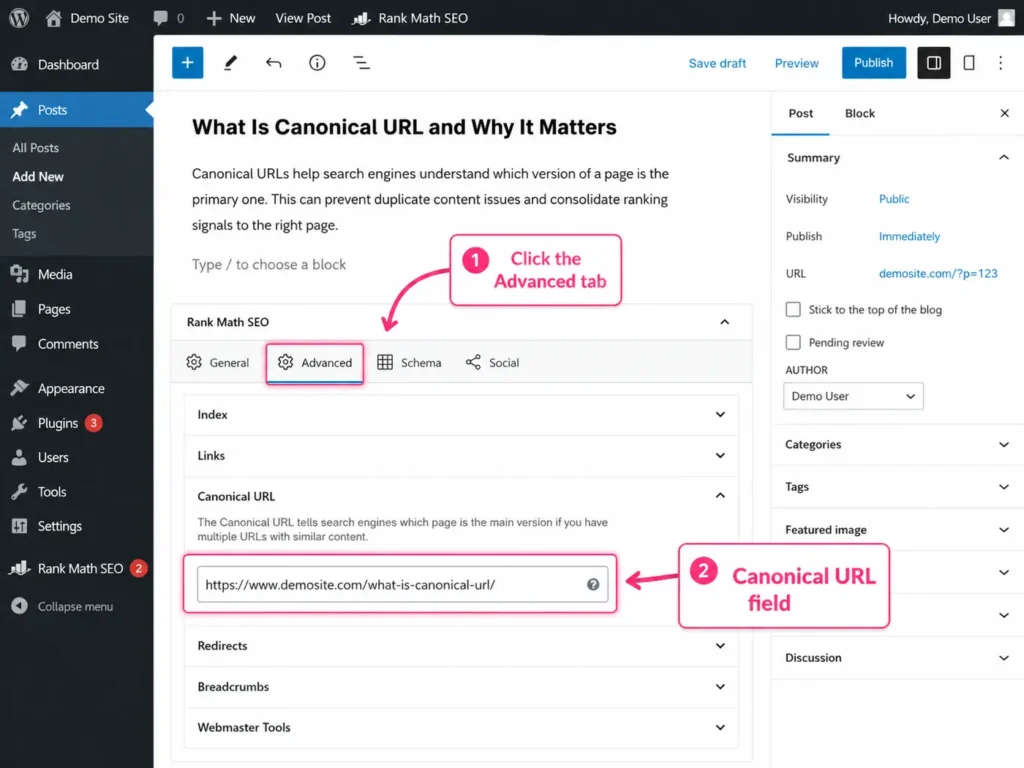
The process is nearly identical. Open the Rank Math sidebar in the editor, go to the Advanced tab, and enter the canonical URL. Rank Math also auto-generates self-referencing canonicals across the site by default.
Adding One Manually
For sites without an SEO plugin, or for non-HTML files like PDFs that have no <head> section to edit, a canonical tag can go directly in the HTTP header instead:
Link: <https://www.example.com/report.pdf>; rel="canonical"Most WordPress sites already output self-referencing canonical tags automatically through Yoast SEO or Rank Math. Manual overrides matter mainly when a site has genuine duplicate content that needs to point somewhere other than its own URL, which is a smaller subset of pages than most site owners expect.
Canonical Tag vs. Redirects, Noindex, and Hreflang
Canonical tags aren’t the only tool for managing duplicate content, and picking the wrong one creates its own problems.
| Tool | What It Does | Use It When |
|---|---|---|
| 301 redirect | Permanently sends users and crawlers to a new URL and removes the old one from the index | The old URL should stop existing altogether |
| Noindex tag | Keeps a page accessible to visitors but excludes it from search results, without consolidating signals | You want the page live but never ranked, like a thank-you page |
| Hreflang | Tells search engines which regional or language version to show a given searcher | You have genuinely different language or country versions of the same content |
| Canonical tag | Consolidates ranking signals to one preferred URL while keeping every version accessible | Duplicate or near-duplicate pages need to stay live for users |
A quick way to decide: if the duplicate page should disappear entirely, redirect it. If it should stay visible to people but invisible to search, noindex it. If it should stay visible to both but only rank under one URL, canonicalize it.
Common Canonical Tag Mistakes
A handful of errors show up again and again, and each one quietly cancels out the benefit of using the tag at all.
- Pointing to a dead or redirecting URL. A canonical tag aimed at a 404 or a page that itself redirects elsewhere confuses search engines rather than guiding them.
- Using more than one canonical tag per page. Search engines ignore all of them when they conflict, leaving you back where you started.
- Canonicalizing to a noindexed page. If the canonical target is blocked from search, the signal has nowhere useful to go.
- Using relative URLs instead of absolute ones. A relative path invites misinterpretation, especially across subdomains or staging environments.
- Chaining canonicals. Page A pointing to Page B, which points to Page C, wastes crawl resources and muddies the signal. Point every canonical directly at the final destination.
- Blocking the canonical URL in robots.txt. If crawlers can’t reach the canonical page at all, they never see the tag and can’t transfer any ranking signal to it.
Ahrefs’ Site Audit tool tracks 14 separate canonical-related issues across a crawled site, which gives a sense of how many small ways this can go wrong even on a well-maintained site.
How to Check Your Canonical Tags
The fastest manual check is viewing a page’s source code and searching for “canonical.” Right-click the page, select “View Page Source,” and press Ctrl+F.
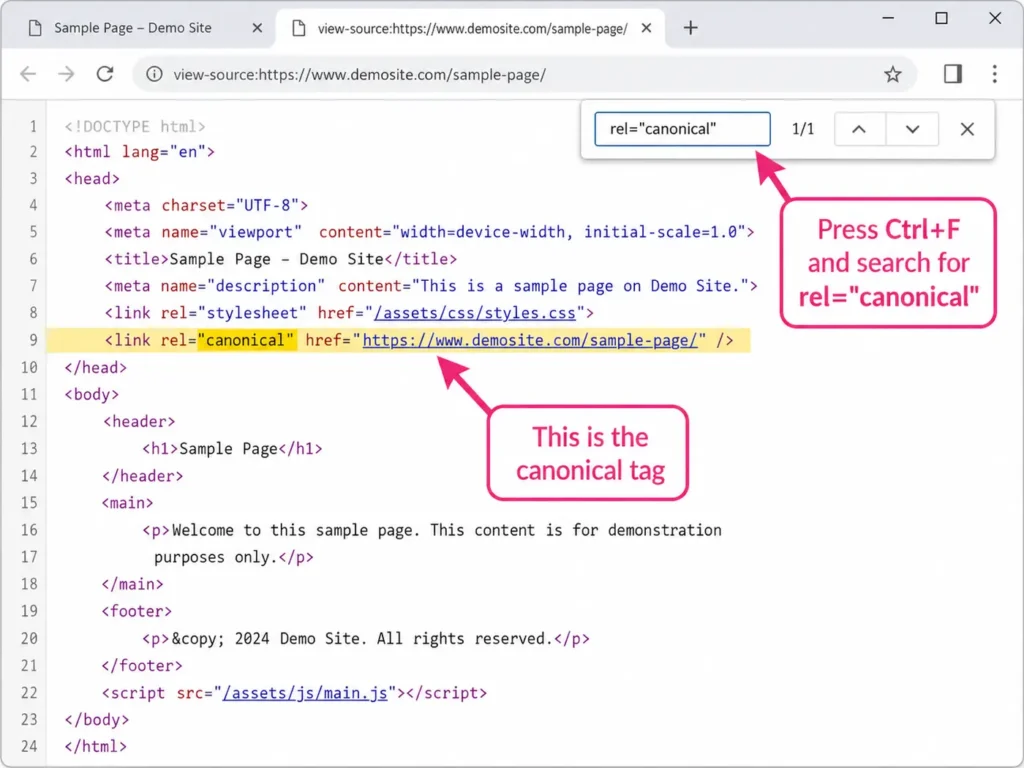
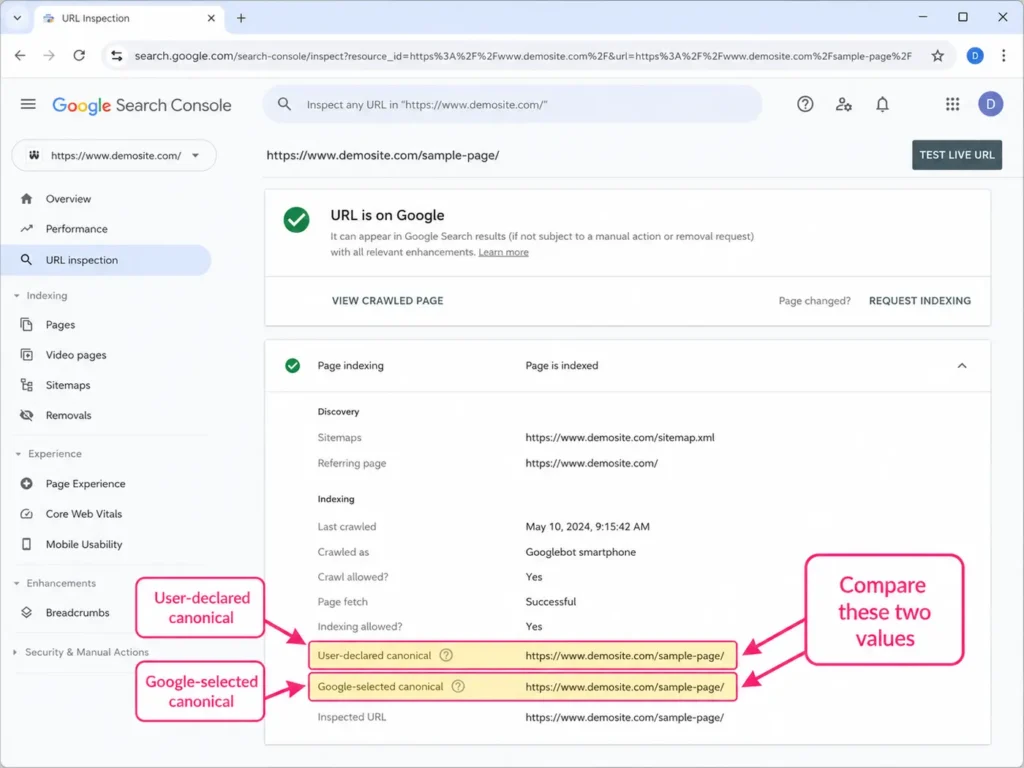
For a more reliable check at scale, use the URL Inspection tool inside Google Search Console. It shows both the canonical URL you’ve declared and the one Google actually selected, which won’t always match if something’s misconfigured. WordPress SEO plugins like Yoast and Rank Math also surface the current canonical setting directly in the post editor, so you can confirm it without leaving the dashboard.
FAQ
Does a canonical tag guarantee my chosen URL will rank?
No. A canonical tag is a strong signal, not a guarantee. Search engines usually respect it, but they can still select a different URL if they determine it better serves the search query, particularly when the pages aren’t genuinely similar.
Can I use a canonical tag instead of a redirect?
Only if you want both URLs to stay live. A canonical tag consolidates ranking signals while keeping every version accessible. A redirect removes the old URL entirely, which is the better choice once a page should no longer exist.
What happens if I don’t use canonical tags at all?
Search engines will still pick a version to rank on their own, based on internal links, sitemaps, and other signals. Without your input, that choice might not match the URL you’d prefer, and duplicate content will keep splitting your ranking signals in the meantime.
Should every page have a self-referencing canonical tag?
Yes, as a baseline practice. It costs nothing to implement, removes ambiguity for search engines, and most WordPress SEO plugins handle it automatically once installed.
Canonical tags aren’t glamorous, but they solve a problem that nearly every growing website eventually runs into: too many URLs pointing at the same content. Get the basics right early, and duplicate content stops being something you have to think about at all. A second pair of eyes helps too. The Rankiwis team can run a full technical SEO audit on your site and flag anything that’s quietly splitting your rankings.