Your website might have excellent content and solid on-page SEO. But if Google can’t find your pages, none of that work matters. An XML sitemap solves exactly that problem. It tells Google where everything lives, so crawlers can find it, index it, and rank it.
This guide covers what an XML sitemap is, why it matters for SEO and AI search, how to create one, and how to submit it to Google Search Console.
Table of Contents
What Is an XML Sitemap?
An XML sitemap is a file that lists the important URLs on your website. Search engines like Google read this file to discover, crawl, and index your pages more efficiently. It’s especially useful for new sites, large sites, and any site where pages aren’t all connected through internal links.
The “XML” part refers to Extensible Markup Language, a structured text format that computers can read and process. You don’t need to understand XML to use a sitemap. Most website platforms generate one automatically. But knowing what’s inside it helps you spot problems and fix them quickly.
XML Sitemap vs HTML Sitemap: What’s the Difference?
These are two different things built for two different audiences.
An HTML sitemap is a page on your website that lists links to your main content. It’s designed for human visitors who want to navigate your site. You’ve probably seen one in a website footer.
An XML sitemap is a file designed for search engines, not people. It lives at a URL like yourdomain.com/sitemap.xml and contains structured data that Googlebot and other crawlers use to map your site. Visitors rarely see it directly.
Both can exist on the same site. They serve different purposes and don’t conflict with each other.
Why Does an XML Sitemap Matter for SEO?
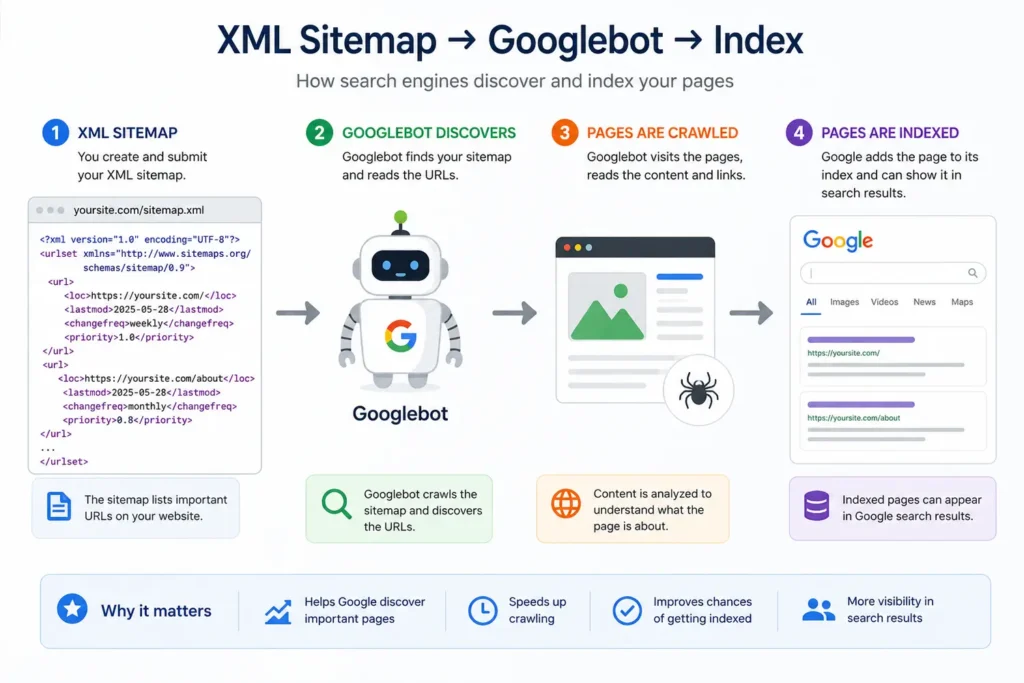
Search engines discover pages by following links. Googlebot starts from known pages and crawls outward through every link it finds. On a small, well-linked site, that works fine. But it breaks down quickly in a few common situations:
- New websites — Few external links point to you yet, so crawlers don’t have many entry points.
- Large websites — Hundreds or thousands of pages can get missed if they’re buried deep in the site structure.
- Pages with thin internal linking — Content that isn’t linked well from other pages often goes undiscovered.
- Sites with rich media — Google can pick up additional metadata about video and image content from a sitemap.
- Orphan pages — These are pages with no internal links pointing to them at all. Googlebot can’t reach them by following links, so without a sitemap they often go unindexed entirely. A sitemap is sometimes the only way these pages get discovered.
According to Google’s own documentation, a sitemap helps search engines discover URLs on your site that may not be easily found through internal links alone. It doesn’t guarantee indexing. Google still decides which pages to crawl and rank, but it removes a significant discovery barrier.
The bottom line: A sitemap doesn’t replace good internal linking. It works alongside it. Think of it as a shortcut that tells Google where everything is, rather than making Google figure it out on its own.
Why Sitemaps Also Matter for AI Search
This is where most guides stop. But in 2026, crawlability isn’t just a Google question.
AI search engines (ChatGPT, Perplexity, Gemini, and others) pull from the same web Google indexes. Pages that Googlebot can’t find often don’t get indexed, which means AI engines can’t cite them either. A well-structured sitemap that helps Google crawl your site efficiently creates a downstream benefit for your GEO (generative engine optimization) visibility too.
If you want AI tools to surface your content when users ask relevant questions, your pages need to be indexable first. Sitemaps are part of that foundation. For a deeper look at how to optimize content for AI citation, the Rankiwis guide to AI search optimization covers the full picture.
What’s Inside an XML Sitemap?
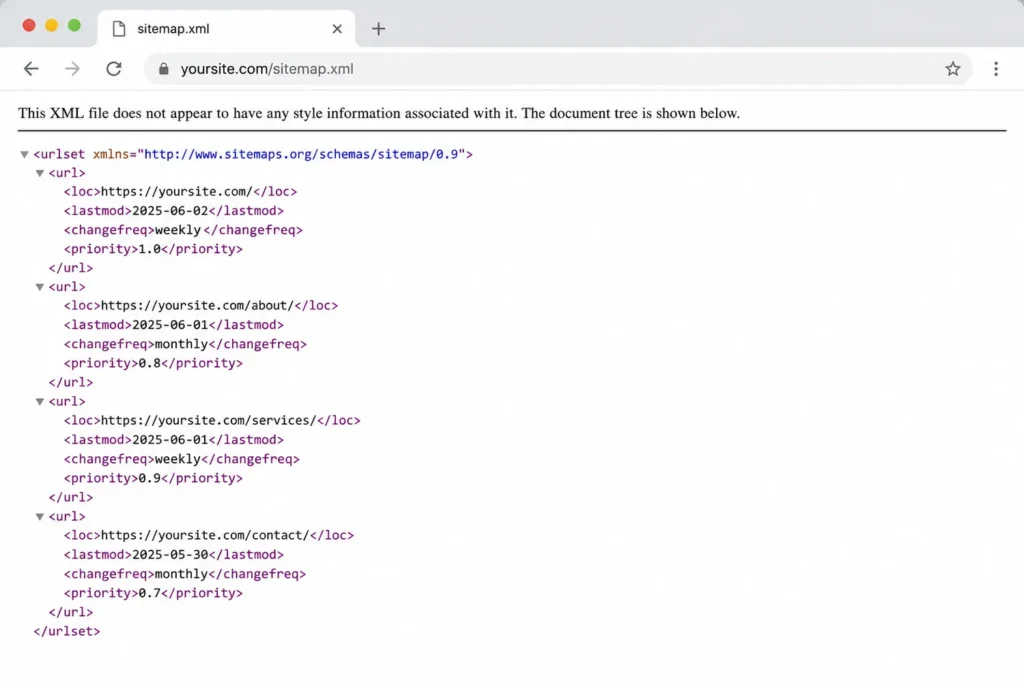
An XML sitemap contains a structured list of URLs. Each entry can include:
<loc>— The full URL of the page. This is the only required tag.<lastmod>— The date the page was last meaningfully updated. Google uses this to prioritize re-crawling.<changefreq>— How often the page typically changes. Google officially ignores this tag. Google Search Central states this explicitly in their sitemap documentation.<priority>— The relative importance of a page on a scale of 0.0 to 1.0. Google ignores this tag too, according to the same documentation.
In practice, focus on keeping your <loc> and <lastmod> values accurate. The rest doesn’t move the needle with Google. Most SEO professionals strip out <changefreq> and <priority> entirely from sitemaps they manage, with no impact on crawling or indexing.
Here’s what a simple XML sitemap entry looks like:
<?xml version="1.0" encoding="UTF-8"?>
<urlset xmlns="http://www.sitemaps.org/schemas/sitemap/0.9">
  <url>
    <loc>https://www.example.com/page-name/</loc>
    <lastmod>2026-06-15</lastmod>
  </url>
</urlset>
Sitemap Size Limits
A single XML sitemap can contain up to 50,000 URLs and must be no larger than 50MB when uncompressed. Most websites never hit these limits. Larger websites that do should split their sitemap into multiple files and link them together using a sitemap index file, which is a parent file that points to each individual sitemap.
Image and Video Sitemaps
Standard XML sitemaps list page URLs. Image and video sitemaps go a step further by giving Google metadata about the media on those pages.
An image sitemap tells Google about images it might not find on its own, particularly images loaded through JavaScript or embedded in ways that make them hard to crawl. Each page entry can include up to 1,000 image tags with details like the image URL and caption. This is particularly useful for e-commerce sites with product galleries and content-heavy sites where images carry SEO value.
A video sitemap works the same way but carries richer metadata: video title, description, thumbnail URL, duration, and publication date. Google uses this to index videos for video search and to display rich results. This applies to videos hosted on your own domain, as well as videos embedded from external platforms like YouTube or Vimeo.
Both types can exist as separate sitemap files or as extensions added directly to your main sitemap. Google supports both approaches. Most WordPress SEO plugins don’t generate image or video sitemaps automatically, so if this content matters for your site, you’ll need to configure it manually or use a dedicated tool.
Do You Actually Need an XML Sitemap?
Google says sitemaps are optional for small, well-linked websites. That’s technically true. But “optional” doesn’t mean “not worth doing.” The cost of creating a sitemap is close to zero on most platforms. The potential benefit is real: faster indexing and fewer missed pages.
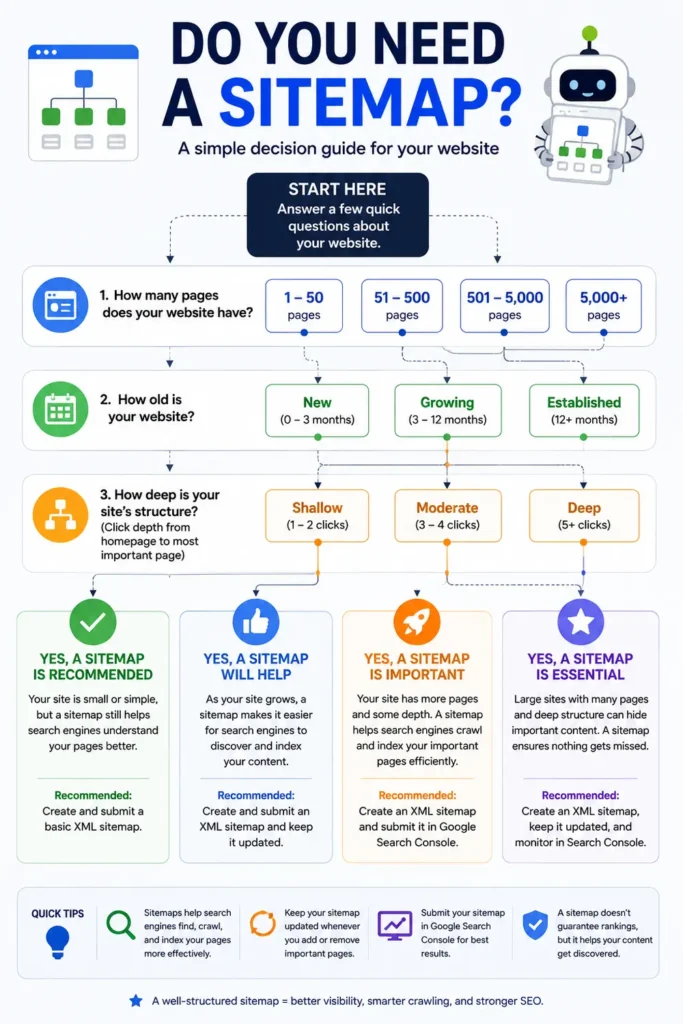
You definitely need one if:
- Your site has more than 50–100 pages
- You publish new content regularly
- Your site is relatively new with few backlinks
- Some pages aren’t linked from other pages on your site
- You have video or image content you want surfaced in search
You can probably skip it if:
- Your site has fewer than 10 pages, all well-linked from the homepage
- No content changes regularly
- You have no immediate plans to grow the site
For most business websites and all content-driven sites, a sitemap is worth having. Set it up once, automate it, and move on.
How to Create an XML Sitemap
WordPress Websites
WordPress makes this straightforward. Both major SEO plugins, Yoast SEO and Rank Math, generate XML sitemaps automatically when you install them. You don’t need to write any XML manually.
With Yoast SEO: Go to SEO > General > Features and confirm XML sitemaps are enabled. Your sitemap is available at yourdomain.com/sitemap_index.xml.
With Rank Math: The sitemap is enabled by default during setup. Find it at yourdomain.com/sitemap_index.xml or yourdomain.com/sitemap.xml depending on your configuration.
Both plugins update the sitemap automatically when you publish, update, or delete pages. You set it up once and the plugin handles it from there.
WordPress also generates a basic built-in sitemap at yourdomain.com/wp-sitemap.xml without any plugin. It works but offers less control than the plugin-generated versions. For most sites, the Yoast or Rank Math sitemap is the better option.
Non-WordPress Websites
For sites not running on WordPress, your options are:
- Platform-built sitemaps — Shopify, Wix, Squarespace, and most major CMS platforms generate sitemaps automatically. Check your platform’s documentation to find your sitemap URL.
- Sitemap generator tools — Tools like Screaming Frog SEO Spider crawl your site and export a sitemap file. Suitable for more complex or custom-built sites.
- Manual creation — Only practical for very small sites with stable URLs. Write the XML file following the sitemaps.org protocol, upload it to your site’s root directory, and reference it in your robots.txt file.
For most sites, the automated approach is faster and less error-prone.
How to Submit Your XML Sitemap to Google
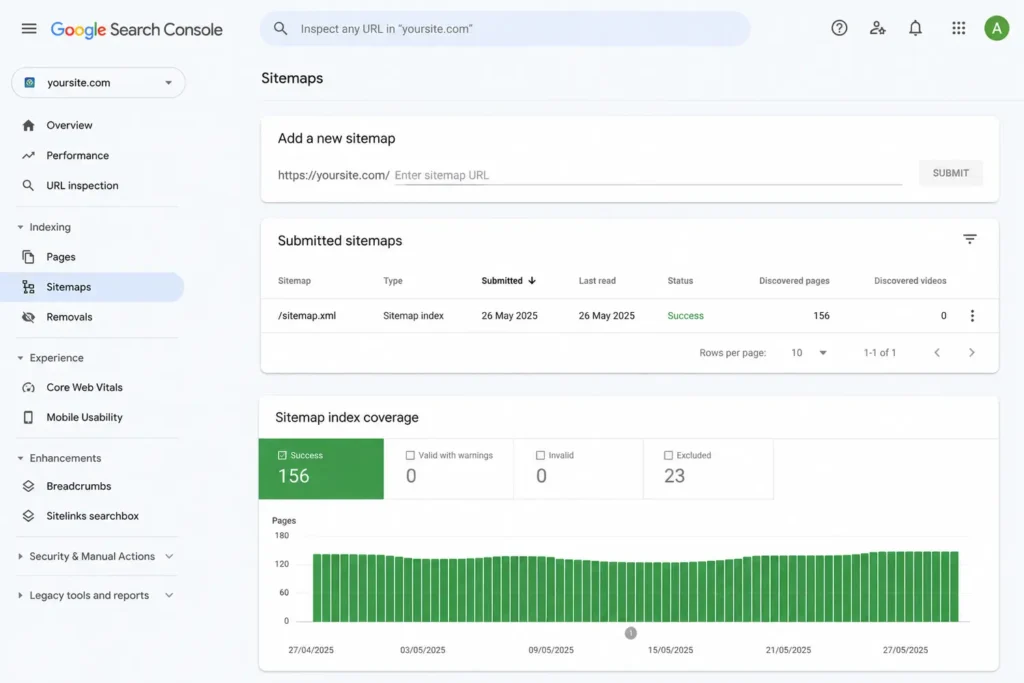
Once your sitemap exists, tell Google about it through Google Search Console. This is the fastest way to prompt Google to start crawling your URLs.
Step 1: Find your sitemap URL
Most sitemaps live at yourdomain.com/sitemap.xml or yourdomain.com/sitemap_index.xml. Check your SEO plugin settings or type these URLs directly into your browser to confirm the file exists and is accessible.
Step 2: Open Google Search Console
Log into Google Search Console and select your property. If you haven’t verified your site yet, the Rankiwis guide to Google Search Console covers the full setup process.
Step 3: Navigate to Sitemaps
In the left sidebar, click Indexing, then Sitemaps. This opens the Sitemaps report.
Step 4: Enter your sitemap URL
In the “Add a new sitemap” field, paste your sitemap URL and click Submit. You only need to enter the path after your domain, for example sitemap.xml or sitemap_index.xml.
Step 5: Check the status
Google processes submitted sitemaps as soon as it can. Return to the Sitemaps report within a few hours or days. A green “Success” status means Google accessed and processed your sitemap. Any errors will appear here with descriptions.
Submitting a sitemap to Google Search Console tells Google where your URLs are and prompts faster crawling. It doesn’t guarantee indexing. Google still evaluates each page independently. But it removes the discovery barrier that delays or prevents indexing on sites without strong external links.
Adding Your Sitemap to robots.txt
A second way to tell Google about your sitemap is to reference it in your robots.txt file. Add this line anywhere in the file:
Sitemap: https://www.yourdomain.com/sitemap.xmlGoogle reads robots.txt during crawls and will find your sitemap this way even without a Search Console submission. This is particularly useful if you manage multiple websites, or as a backup to your Search Console submission.
XML Sitemap Best Practices
A sitemap only works as well as what’s in it. Follow these principles to keep yours clean and effective.
Only include indexable pages. Don’t add URLs that return a 404 error, redirect to another page, or have a noindex tag. These send conflicting signals and waste crawl budget. Your sitemap should list only the pages you want Google to discover and rank.
Keep it current. Your sitemap should reflect your site as it exists today. Add new pages when you publish them, remove deleted or redirected pages promptly. Most plugins handle this automatically, but check occasionally to confirm.
Use accurate <lastmod> dates. Only update this value when you make meaningful changes to the page content. Changing it arbitrarily to signal freshness doesn’t fool Google and can reduce trust in your sitemap data.
Keep each sitemap under 50,000 URLs. Large sites should split sitemaps by content type (pages, posts, products) and use a sitemap index file to organize them.
Reference your sitemap in robots.txt. This ensures Google finds it even outside of Search Console, and signals clean technical setup.
For broader technical SEO best practices, covering crawlability, site architecture, and Core Web Vitals, the Rankiwis technical SEO guide covers the full technical foundation your site needs.
Common XML Sitemap Errors (And How to Fix Them)
A sitemap with errors is worse than no sitemap at all. It sends conflicting signals and wastes the crawl budget Google allocates to your site. These are the mistakes that come up most often.
noindex pages in the sitemap. Your sitemap tells Google to crawl a page. A noindex tag tells Google not to index it. Including both on the same page creates a direct contradiction. Google will usually respect the noindex tag, but the conflict wastes crawl resources. Fix it by removing any noindex pages from your sitemap entirely.
Redirect URLs listed in the sitemap. Your sitemap should only contain the final destination URL, not a URL that redirects to another page. Redirects in sitemaps consume crawl budget without delivering any indexing benefit. Audit your sitemap periodically and remove any URLs that return a 3xx status code.
Blocked pages in robots.txt that also appear in the sitemap. If a page is blocked in robots.txt, Googlebot can’t crawl it. Listing it in your sitemap anyway is a contradiction. Google Search Central explicitly states that sitemap URLs should be crawlable, so make sure your robots.txt and sitemap agree on which pages are accessible.
Broken URLs returning 404 errors. Deleted or moved pages sometimes linger in sitemaps long after they’ve been removed from the site. Any URL returning a 404 error should be removed from the sitemap immediately.
Inaccurate <lastmod> dates. Updating this value arbitrarily to make pages look fresh is a tactic Google ignores and can actively penalize. Google cross-checks <lastmod> against the actual last-modified date of the page. If the dates don’t match consistently, Google stops trusting the data and may ignore the field altogether.
Google Search Console surfaces most of these errors in the Sitemaps report. Check it after your initial submission and revisit it quarterly to catch any new issues.
Frequently Asked Questions
Does submitting a sitemap guarantee Google will index my pages?
No. Submitting a sitemap tells Google your pages exist and prompts crawling. Google still decides independently which pages to index based on content quality, duplicate content checks, and other ranking signals. If pages aren’t being indexed after submission, the issue is usually content quality or a noindex tag, not the sitemap itself.
How often should I resubmit my sitemap?
Most sites don’t need to resubmit regularly. If your SEO plugin updates the sitemap automatically, Google recrawls it on its own schedule. Resubmit manually after a major site restructure, after you’ve fixed sitemap errors, or after moving to a new domain.
Can a site have more than one sitemap?
Yes. Large sites commonly use separate sitemaps for pages, posts, products, and images. These individual sitemaps are organized under a sitemap index file that points Google to each one. A single site can have multiple sitemaps as long as each stays within the 50,000 URL and 50MB limits.
What does “Couldn’t fetch” mean in Google Search Console?
It means Google tried to access your sitemap but couldn’t reach it. Common causes include server downtime, a wrong URL, or the sitemap file being blocked by login requirements. Check that the sitemap URL is publicly accessible. Open it in an incognito browser tab to confirm. If the issue persists after 24 hours, investigate your server configuration or hosting setup.
Do sitemaps help with AI search engines?
Indirectly, yes. AI engines like ChatGPT, Perplexity, and Gemini pull content from the web they can crawl and index. Pages that aren’t indexed by Google are typically invisible to AI engines too. A sitemap that helps Google discover and index your content creates the foundation for AI citation visibility. Start with getting your pages indexed correctly. The Rankiwis GEO guide covers the content-level signals AI engines need once your pages are crawlable.
How do I find my sitemap URL?
Try yourdomain.com/sitemap.xml or yourdomain.com/sitemap_index.xml first. WordPress sites using Yoast or Rank Math typically use the index format. If neither URL shows a file, check your SEO plugin settings or your platform’s documentation.
Not sure if your site is set up for Google to crawl it properly? Book a free consultation with the Rankiwis team and we’ll review your technical setup and tell you exactly what needs fixing.