Your website doesn’t need a developer to improve page speed. It needs five specific fixes, done in the right order, without touching a single line of code.
Most page speed advice reads like a manual written for people who already code. Google’s own PageSpeed Insights report throws around terms like render-blocking resources and resource load delay, as if every site owner has a computer science degree. Nobody needs one for this.
This guide breaks down exactly what to do, in what order, using tools and plugins built for people who run a website but don’t build them from scratch. Pair it with our Core Web Vitals guide if the goal is understanding what LCP, INP, and CLS actually measure. Here, the job is fixing the numbers, not defining them.
Table of Contents
Why Page Speed Is Worth Fixing (Even Without Technical Skills)
Speed affects revenue before it affects rankings. Deloitte and Google measured this directly in a joint study covering 37 retail, travel, and lead-generation brands. A mobile speed improvement of just 0.1 seconds lifted retail conversion rates by 8.4% and average order value by 9.2%.
A faster site converts more visitors into customers before it ever touches search rankings. Google and Deloitte’s joint research found that a 0.1-second mobile speed improvement lifted retail conversions by 8.4% and average order value by 9.2%, based on real data from 37 global brands.
Search rankings matter too, just less directly than most people assume. Our Core Web Vitals guide covers exactly how Google factors speed into rankings and where it works more as a tiebreaker than a primary driver. The bigger prize sits earlier in the funnel: visitors who stay instead of bouncing, and forms that get filled out instead of abandoned.
Step 1: Find Out How Slow Your Site Actually Is
Every fix in this guide starts from a number. Skip this step, and every change becomes a guess.
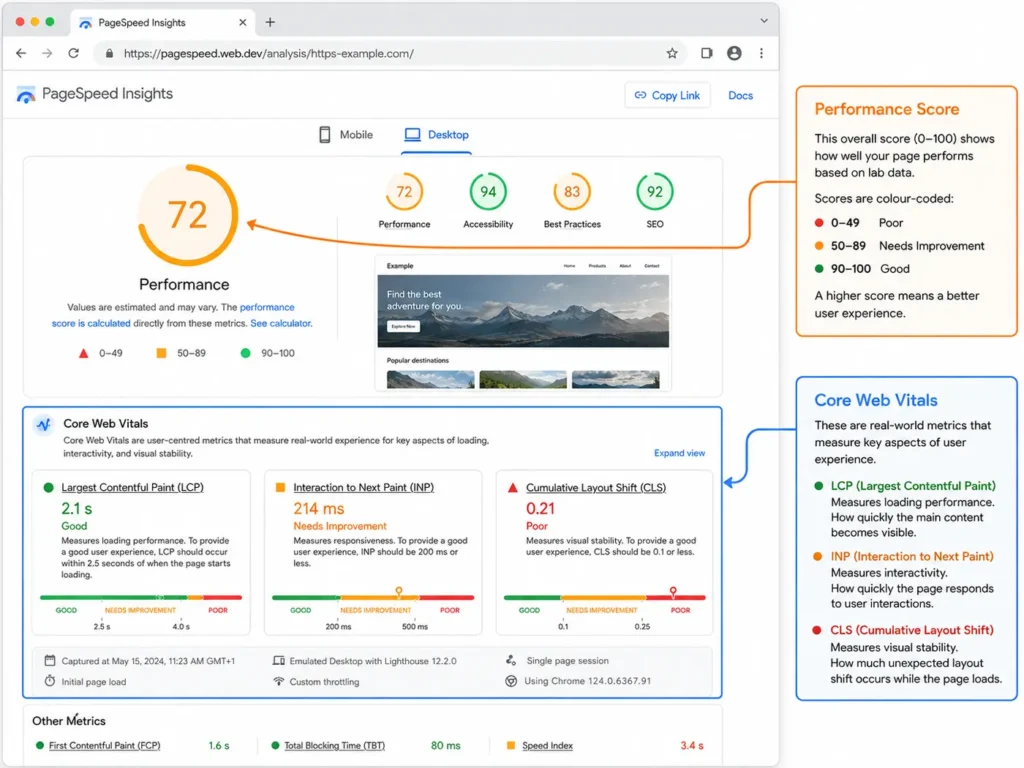
Head to Google PageSpeed Insights and enter your URL. Run the mobile test first, since most visitors, and Google’s ranking system, judge mobile performance most closely. The report returns three colors: green means good, orange means it needs work, red means urgent.
Ignore the 0-100 score at the top for now. Scroll down to the Core Web Vitals section instead. It shows actual field data (real visitors, not a lab simulation) for LCP, INP, and CLS, alongside a Diagnostics list of specific problems. HTTP Archive’s 2025 Web Almanac found that only 54% of sites achieve a “good” LCP score globally, and WordPress sites specifically pass at 53%. That means roughly half the web, including plenty of well-run small business sites, has room to improve here.
Testing page speed starts with Google PageSpeed Insights, a free tool that reports Core Web Vitals, Time to First Byte, and specific diagnostics based on real visitor data rather than a lab simulation. Run the mobile report first, since most visitors and Google’s ranking system judge mobile performance most closely.
WordPress users have an easier path than the raw report suggests. Plugins like Rank Math and All in One SEO surface many of the same diagnostics in plainer language, right inside the WordPress dashboard. That’s often a faster way to find the actual bottleneck than parsing Google’s technical report line by line.
Step 2: Fix Your Images First
Images cause more page speed problems than anything else on a typical site. HTTP Archive’s 2025 data shows images serve as the largest visible element, the LCP element Google measures, on 76% of mobile pages and 85% of desktop pages. Fix images, and the biggest number on the report usually moves with them.
Three changes matter most, in this order:
Compress before uploading. A photo straight from a phone or stock site can run 3-5MB. Tools like TinyPNG, Squoosh, or ShortPixel shrink that file by 60-80% with no visible quality loss. Do this before uploading, not after, since re-compressing an already-published image usually means re-uploading it anyway.
Switch to WebP format. WebP files run smaller than JPG or PNG at the same visual quality, yet HTTP Archive found that JPG still powers 57% of LCP images, with WebP at just 11% as of 2025. Most modern hosting and WordPress plugins convert images to WebP automatically once turned on.
Never lazy-load the hero image. Lazy loading delays offscreen images until a visitor scrolls to them, which helps everywhere except the one image visible immediately on load. Roughly 16-17% of pages still make this mistake, based on HTTP Archive’s tracking, and it directly slows LCP instead of helping it.
Images cause most page speed problems since they make up the largest visible element on 76% of mobile pages, according to HTTP Archive’s 2025 Web Almanac. Three fixes handle most of it without a line of code: compress images before upload, switch to WebP format, and skip lazy load on the hero image.
For WordPress, plugins like Smush, ShortPixel, or Imagify handle compression and format conversion automatically on upload. Most caching plugins covered in Step 3 also handle lazy loading correctly out of the box.
Step 3: Turn On Caching (The Single Biggest Plugin Change)
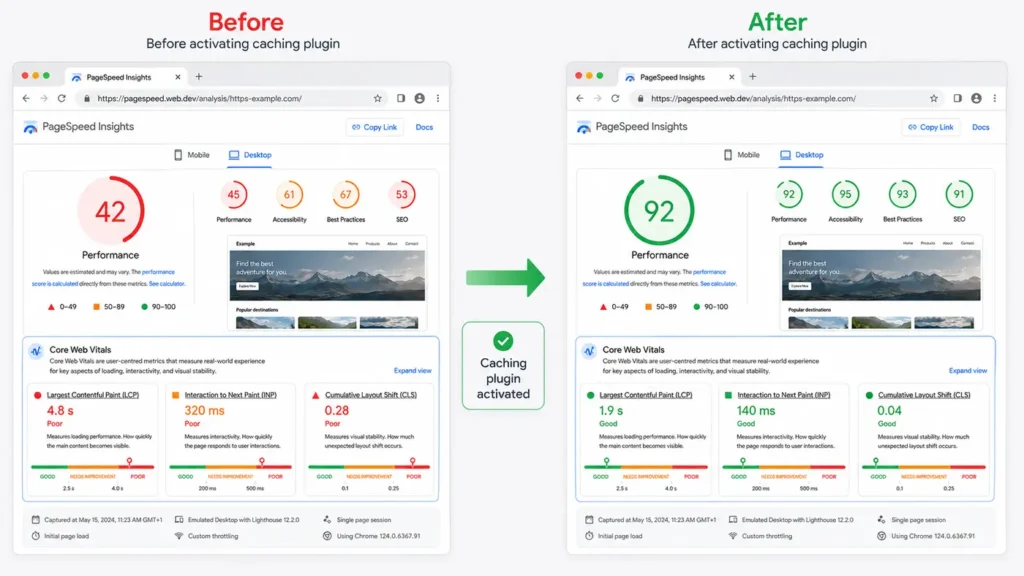
Caching delivers the largest speed gain for the least effort of anything on this list. A caching plugin saves a ready-to-serve copy of each page, so the server stops rebuilding it from scratch for every visitor.
Picture a busy restaurant that cooks each order from raw ingredients every single time, even for the same dish ordered ten times in an hour. A caching plugin works like a kitchen that pre-makes the popular dishes, so it serves them the moment someone orders instead of cooking each one from scratch. The visitor gets the same result faster, and the server does less work per visit.
WordPress users get a straightforward menu of options: WP Rocket (paid, minimal setup), LiteSpeed Cache (free, built for LiteSpeed-based hosting), or WP Super Cache (free, simple). Most of these plugins bundle image lazy loading, CSS and JavaScript minification, and browser caching into a single toggle, so one install often improves several diagnostics at once.
A caching plugin saves a ready-to-serve version of each page so the server doesn’t rebuild it from scratch for every visitor. It’s usually the single highest-impact change a non-developer can make, often moving a red PageSpeed score to yellow or green with one plugin install and no code.
Test the site again with PageSpeed Insights right after activating a caching plugin. It’s common to watch a red score jump straight to yellow or green from this step alone, before touching anything else on this list.
Step 4: Fix Server Response Time With Better Hosting or a CDN
Compressed images and an active caching plugin don’t always solve everything. When a site still loads slowly after both, the server itself usually carries the blame, measured as Time to First Byte (TTFB): the gap between a visitor’s request and the first byte of data coming back.
HTTP Archive’s 2025 data shows only 44% of mobile pages achieve a good TTFB score, and shared hosting plans are the most common cause. A shared server splits its resources across hundreds of sites, so one traffic spike on a neighboring site can slow down every account on that server, including yours.
Two fixes address this directly:
Upgrade the hosting plan or provider. Managed WordPress hosting and cloud-based plans typically include server-level caching and faster storage (NVMe or SSD) that shared hosting skips. This is often the single biggest speed jump available for a site stuck in the red on TTFB despite every other fix already in place.
Turn on a content delivery network. A CDN stores copies of a site’s files on servers around the world, so a visitor in Sydney doesn’t wait on a server response from a data center in Ohio. Cloudflare offers a solid free tier, and most modern hosts, including Hostinger, bundle CDN access directly into hosting plans.
Time to First Byte measures how long a server takes to respond to a request, and it’s the most common reason a site stays slow even after caching and image fixes are in place. A move from shared hosting to a managed plan, or a free CDN like Cloudflare, usually fixes it without any code changes.
Step 5: Cut the Extra Weight From Plugins, Fonts, and Scripts
Every plugin, font, and embedded script adds a little weight. Individually, none of it seems like much. Together, it’s often the difference between a fast site and a sluggish one.
A quick audit covers four areas:
Deactivate unused plugins. A plugin doesn’t need to be active on the frontend to slow things down. Many load scripts and styles on every page, whether or not that page uses the feature. Deactivate anything not in active use, and delete plugins that were only ever tested once.
Limit web fonts. HTTP Archive’s 2025 data found that 88% of websites now load at least one custom web font, and each one adds a network request plus a possible layout shift while it loads. Two font weights usually cover a site’s design needs. Ten rarely improve it.
Audit third-party scripts. Chat widgets, analytics tools, and social media embeds all run JavaScript that competes for the same processing time as everything else on the page. Keep the ones that earn their spot, like a functioning analytics setup, and remove the rest, especially anything installed once and forgotten.
Clean up the database. WordPress stores old post revisions, spam comments, and expired transients indefinitely by default. A plugin like WP-Optimize clears this out in a couple of clicks and keeps the database lean as the site grows.
Plugins, custom fonts, and third-party scripts each add a small amount of loading weight, and the combined total often slows a site down more than any single cause. Three habits trim meaningful weight without any coding work: deactivate unused plugins, limit web fonts to two weights, and remove forgotten embeds.
Which Fix Should You Tackle First?
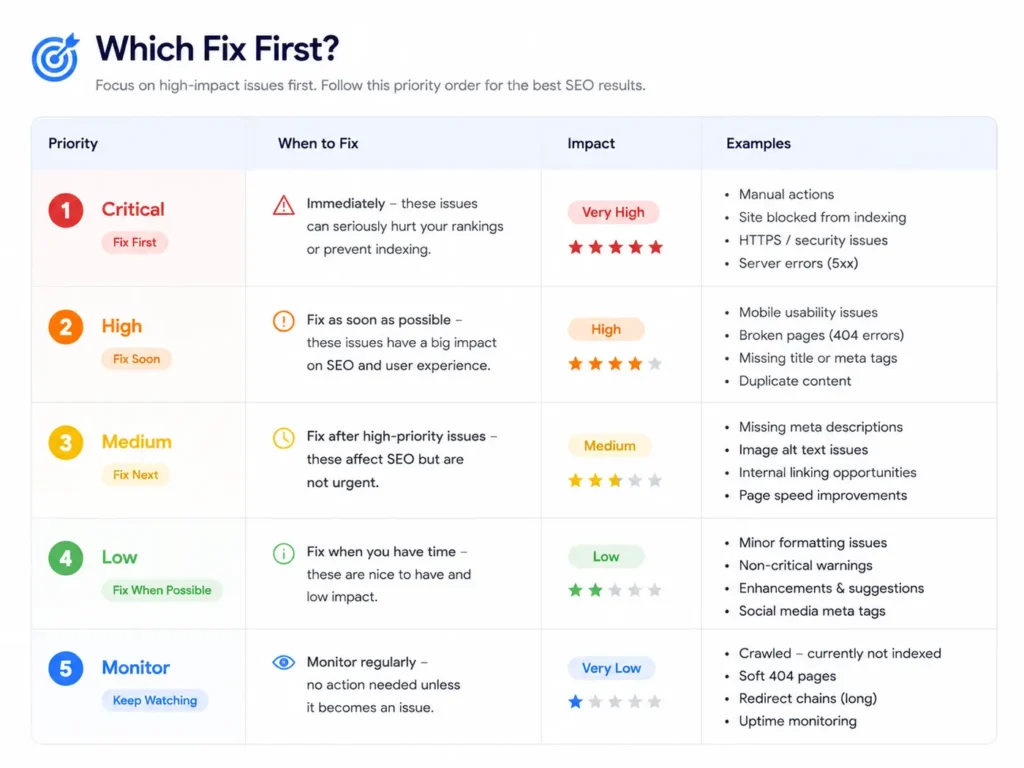
Not every site needs every fix, and going in order saves time. Match the symptom to the fix:
| What PageSpeed Insights Flags | Start Here |
|---|---|
| Poor LCP, especially with heavy images | Image compression and WebP conversion (Step 2) |
| Slow loading across the board | Caching plugin (Step 3) |
| Server response time or TTFB in red | Hosting upgrade or CDN (Step 4) |
| Good LCP but visible layout jumps | Fixed image dimensions and font loading (Step 5) |
| INP flagged, clicks feel delayed | Third-party script audit (Step 5) |
Most sites see the biggest jump from caching and image fixes alone. Server and hosting changes matter more for sites that have already handled the basics and are still stuck.
When Every DIY Fix Still Isn’t Enough
A small number of sites need more than plugin-level fixes. Custom-built themes with heavy code, ecommerce sites running dozens of product images per page, and sites carrying years of database bloat sometimes hit a ceiling that plugins alone can’t clear.
At that point, a full technical SEO audit identifies exactly what’s holding the site back, whether that’s unoptimized database queries, a poorly coded theme, or server configuration that needs a developer’s attention. Contact Rankiwis for a speed and technical SEO review if the DIY fixes above have plateaued.
How to Improve Page Speed for Good: A Quick Recap
Page speed rewards small, boring changes done consistently: compressed images, an active caching plugin, hosting that matches the site’s actual traffic, and a periodic cleanup of everything nobody asked for. None of it requires a developer. All of it requires actually doing it, one step at a time, starting with a single PageSpeed Insights test today.
A fast site also deserves to get found. Once load times improve, submitting a clean sitemap helps Google discover and re-crawl those faster pages sooner rather than later.
Frequently Asked Questions
Do I need to know how to code to improve page speed?
No. Every fix in this guide runs through a plugin, a hosting setting, or a free tool like PageSpeed Insights. Compression tools, caching plugins, and CDN setups all work through dashboards and toggles rather than code editors. Developers help most with custom themes or database-level issues, not the everyday fixes covered here.
What’s the single best fix for page speed?
For most sites, a caching plugin delivers the biggest jump for the least effort. It bundles several fixes, including page caching, file minification, and often lazy loading, into one install. Image compression usually ranks a close second, since images account for the majority of LCP elements across the web.
How often should I test my page speed?
Test after any major change: a new theme, a new plugin, or a redesign. Outside of that, checking once a quarter catches slow creep from added plugins, growing image libraries, and forgotten scripts before it becomes a bigger problem. Google Search Console’s Core Web Vitals report tracks this automatically between manual checks.
Will a faster site actually help my Google rankings?
Yes, though usually as a tiebreaker rather than the deciding factor. Google confirmed Core Web Vitals as a ranking signal in 2021, and it matters most when competing pages already have similar content quality. The bigger win is behavioral: faster sites keep visitors longer and convert more of them, which sends its own positive signal back to Google over time.
What’s a good PageSpeed Insights score to aim for?
A score in the 90s looks impressive, but it isn’t required. The real goal is passing Core Web Vitals at the 75th percentile of real visits, which PageSpeed Insights reports separately from the 0-100 score. A site scoring 80 with all three Core Web Vitals in the green outperforms a site scoring 95 that fails one of them.