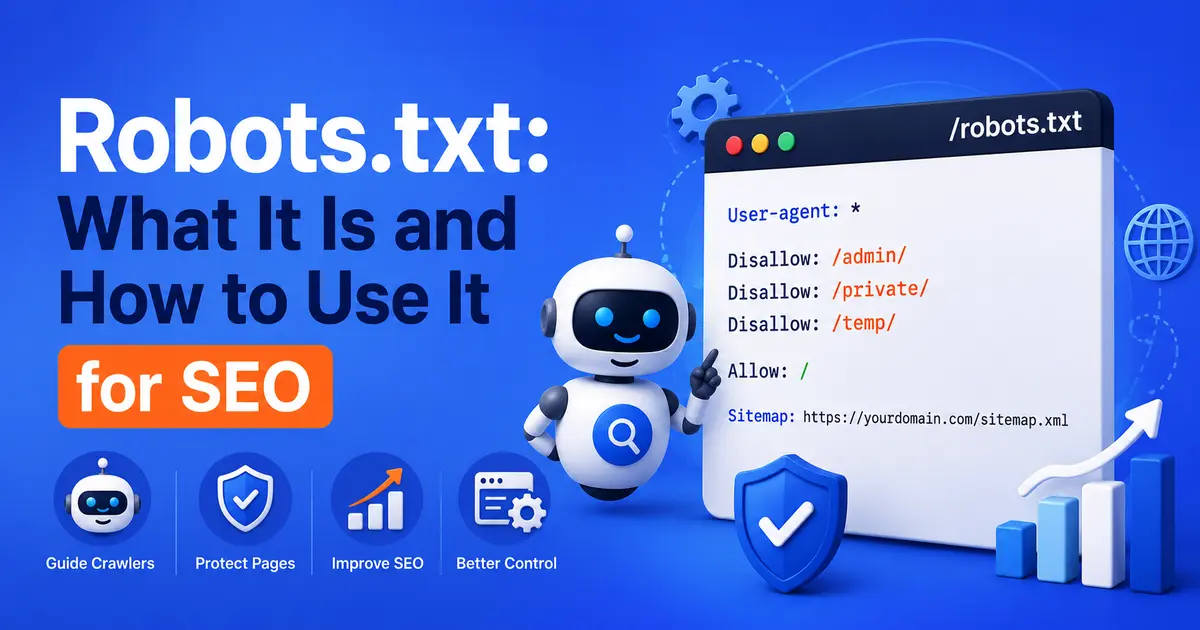
Most site owners never think about their robots.txt file. Rankings collapse and they can’t figure out why. Then someone opens the file and finds a single line left over from a staging environment that has been quietly blocking Google from crawling the entire site for weeks.
It happens more than you’d think. Search Engine Land documented a case where organic traffic dropped 90% within 24 hours after a developer pushed a staging robots.txt to production. Two lines of code. Years of SEO progress gone. The fix took thirty seconds. Nobody flagged the problem because robots.txt fails silently.
This guide walks through what robots.txt actually does, what to block and what to leave alone, the mistakes that cause the most damage, and a quick way to check if your file is currently working against you.
Table of Contents
What Is a Robots.txt File?
A robots.txt file is a plain text file placed in the root of your website that tells search engine crawlers which pages they can and cannot access. It manages crawl behavior, not indexing. A blocked page can still appear in Google’s search results if other sites link to it. Google’s official robots.txt documentation confirms this directly. The file lives at yourdomain.com/robots.txt and every major search engine crawler looks for it before crawling anything on your site.
The Robots Exclusion Protocol, the standard that governs how robots.txt files work, has been around since 1994. Google formally initiated the standardization process in 2019, and the IETF published it as RFC 9309 in September 2022, making it an official Internet standard after nearly three decades as an informal convention. The format hasn’t changed much. It’s still plain text, still uses straightforward commands, and still gives you real control over how crawlers spend their time on your site.
Most small websites don’t need a complex robots.txt file. A simple one that blocks admin pages and points crawlers to your XML sitemap is usually enough. The problems start when site owners add rules they don’t fully understand, or launch a site without removing the staging environment blocks.
How Robots.txt Actually Works
Every time a search engine crawler arrives at your site, it looks for the robots.txt file first. It reads the rules, then decides which pages to visit based on what you’ve told it. Crawlers from Google, Bing, and other major engines respect these rules. Some less reputable bots ignore them entirely. Robots.txt was never designed to stop bad actors.
The basic syntax
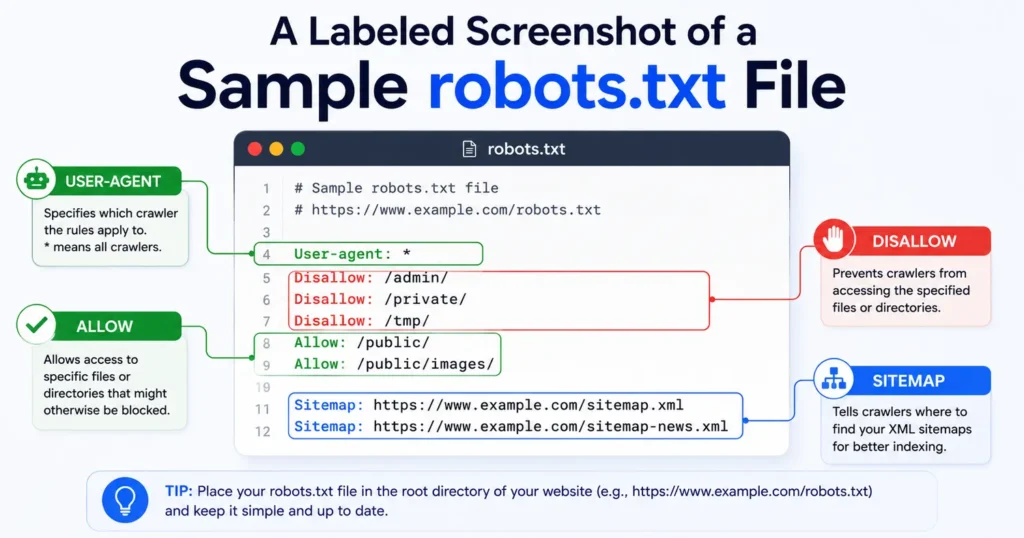
A robots.txt file contains two core components: a User-agent line and one or more directive lines. The user-agent specifies which crawler the rule applies to. The directives tell the crawler what to do.
Here’s the most basic robots.txt file possible:
User-agent: *
Disallow:
The asterisk (*) means “all crawlers.” An empty Disallow line means nothing is blocked. This tells every crawler it can access everything on your site, which is perfectly fine for most small sites.
To block a specific folder:
User-agent: *
Disallow: /wp-admin/
To block your entire site (useful on staging environments, but dangerous on live ones):
User-agent: *
Disallow: /
That last example is the one that causes disasters. It’s the first thing to check if your organic traffic drops suddenly and no pages appear in Google’s index.
The directives you need to know
User-agent: specifies which crawler the rules apply to. Googlebot targets Google’s main crawler. Bingbot targets Bing. * Targets all crawlers.
Disallow: tells the specified crawler not to access a particular URL, folder, or file type.
Allow: overrides a Disallow rule for a specific page or subfolder. Useful when you want to block a directory but allow one page within it.
Sitemap: points crawlers directly to your XML sitemap. This isn’t a crawling directive; it’s a discovery aid that most major crawlers understand.
Sitemap: https://www.yourdomain.com/sitemap.xml
One important rule: robots.txt is case-sensitive. Disallow: /Blog/ is not the same as Disallow: /blog/. If your URLs use a specific capitalization, your rules must match exactly.
What You Should Block in Robots.txt
The main use case for robots.txt is directing crawlers away from pages that waste crawl budget without adding any ranking value. Crawl budget matters more for large sites, but it’s worth getting right even on smaller ones.
Pages worth blocking include:
- Admin and backend areas (
/wp-admin/,/admin/) - Login and registration pages
- Internal search result pages (like
/?s=on WordPress) - Cart, checkout, and order confirmation pages
- Staging or development subfolders that didn’t get cleaned up
- Duplicate versions of pages generated by URL parameters
- Private member-only sections that shouldn’t appear in search
The logic is simple: every page Google crawls takes up crawl budget. Directing that budget toward your content pages rather than checkout flows or admin dashboards makes the crawler’s time on your site more productive.
Unnecessary pages create another problem when left open: duplicate content risk. Your /?s=search-term pages don’t add value to a user searching Google; they just create thousands of near-identical URLs that Google has to process.
A robots.txt file helps search engines focus their crawl budget on your most valuable pages. Blocking low-value pages like cart pages, login pages, and internal search results helps crawlers spend their time on the content that actually drives traffic and rankings. For large sites especially, this can meaningfully improve how quickly new pages get discovered and indexed.
What You Should Never Block
This is where the real damage happens. The most common catastrophic robots.txt mistake is blocking something that looks optional but turns out to be critical.
Never block CSS and JavaScript files. Google renders pages the way a browser does. If it can’t access your CSS and JS, it can’t see your layout, navigation, or dynamic content. This leads to a broken understanding of your site’s structure, which can lower rankings. Some older robots.txt setups block /wp-content/ on WordPress sites, which accidentally prevents Google from accessing theme files it needs to render pages correctly.
Never block your content pages. This sounds obvious, but it’s surprisingly easy to do with a broad wildcard rule. A rule like Disallow: /category/ On a WordPress blog will block every single category archive page, potentially wiping large sections of the site from Google’s crawl.
Never block your sitemap. You want Google to find your sitemap, not avoid it. Reference it in the Sitemap: directive instead.
Never block pages you want indexed. Robots.txt controls crawling. Block a page from being crawled, though, and any noindex tag on that page won’t be seen. The page might still appear in search results (as a URL without a description) because it was linked from elsewhere. This is the worst of both worlds: not indexed properly, but still visible in search.
The safest rule is this: only block what you’d be comfortable never seeing in Google’s index. If there’s any doubt, leave it accessible and use the noindex meta tag instead.
Robots.txt vs. Noindex: Which One Should You Use?
This is one of the most misunderstood distinctions in technical SEO, and getting it wrong causes real problems.
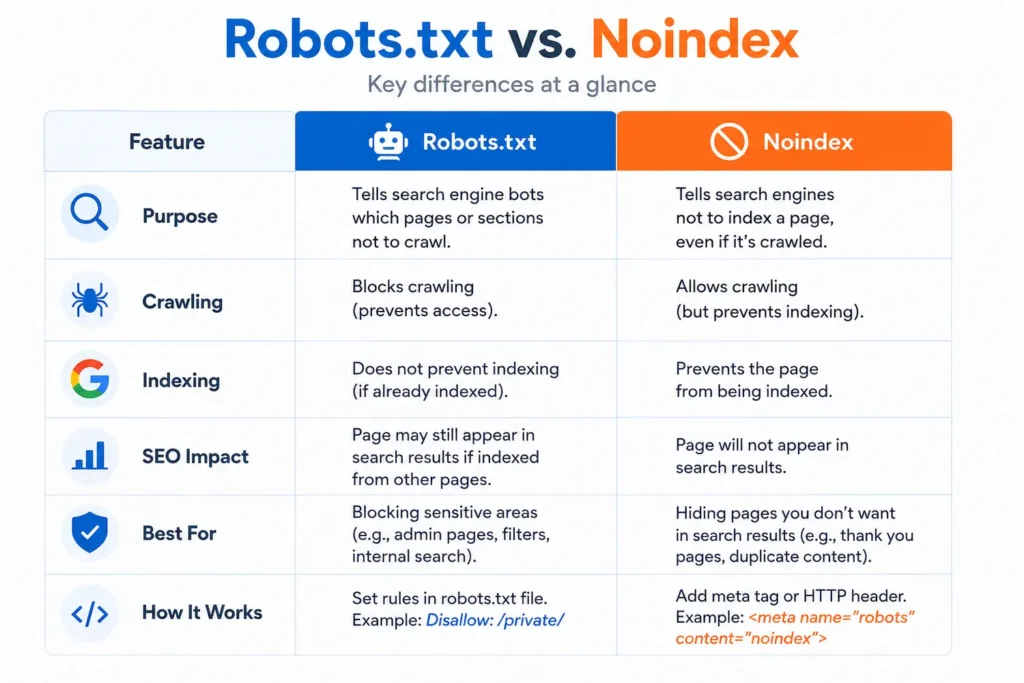
Robots.txt controls crawling. It tells Googlebot whether to visit a URL. If you disallow a page, the crawler won’t fetch it. But Google can still learn the URL exists through external links, and may show it in search results as a URL with no snippet.
The noindex meta tag controls indexing. It tells Google not to include the page in search results. But for Google to see the noindex tag, it has to be able to crawl the page in the first place.
Robots.txt and noindex serve different purposes and should not be confused. Use robots.txt to stop crawlers from wasting time on low-value pages. Use a noindex meta tag when you want to keep a crawlable page out of Google’s search results. Blocking a page in robots.txt and relying on it to stay out of search is a common mistake that can leave URLs appearing in results without any content snippet.
The right tool depends on what you actually want:
| Goal | Use |
|---|---|
| Stop Google wasting crawl budget on admin pages | Robots.txt Disallow |
| Keep a page crawlable but out of search results | Noindex meta tag |
| Block both crawling and indexing | Robots.txt Disallow + noindex (but note: Google can’t read the noindex if crawling is blocked) |
| Remove a page from search results reliably | Noindex meta tag (keep the page crawlable) |
For most sensitive pages (thin content, duplicate pages, staging environments), noindex is the cleaner and safer choice.
The Most Common Robots.txt Mistakes (and How to Avoid Them)
Robots.txt mistakes are especially painful because they fail silently. There’s no error message on your site. Google just stops crawling the blocked pages and your rankings gradually disappear. By the time someone investigates, weeks of organic traffic may already be lost.
Launching with staging-environment rules. This is the most common disaster scenario. Developers block the entire site during staging with Disallow: /. The site goes live. Nobody updates robots.txt. Googlebot visits, reads the file, and walks away. The fix is checking robots.txt as a standard part of every launch checklist.
Blocking CSS and JavaScript. If your robots.txt includes rules that prevent Googlebot from accessing your theme files, your site may render incorrectly in Google’s eyes: navigation missing, content appearing out of context, or structured data failing to parse properly.
Using wildcards incorrectly. Wildcards (* for any character sequence, $ for end of URL) are powerful but easy to misuse. A rule like Disallow: /search will block not just your internal search pages but any URL path that begins with the word “search”, including /search-engine-optimization/ or /search-results-tips/. Always test wildcard rules before applying them.
Conflicting directives. If you have both Disallow: /blog/ and Allow: /blog/ in the same user-agent block, Google will apply the more specific rule. If they’re equally specific, it applies the less restrictive one. Conflicting rules create unpredictable behavior. Remove the contradiction.
Case sensitivity errors. A rule targeting /Blog/ won’t catch /blog/. Every path in your robots.txt needs to match the actual capitalization of your URLs.
Typos in the Sitemap directive. If you include a sitemap URL that returns a 404, you’ve pointed Google to a dead end. Paste the sitemap URL into a browser and confirm it loads before saving the rule.
Treating robots.txt as a security mechanism. The file is publicly visible at yourdomain.com/robots.txt. Any path you list there is effectively broadcasting its existence. Disallowing a sensitive directory does not hide it; it advertises it. Use server-level access controls or password protection for anything that needs to stay private.
Should You Block AI Crawlers?
This question has become increasingly relevant as AI companies send their own crawlers to train large language models and power AI search tools. According to Cloudflare’s March 2025 data, AI crawlers were already generating more than 50 billion requests per day across its network, just under 1% of all web traffic it processes.
The major players in 2026 include GPTBot, OAI-SearchBot, and ChatGPT-User (OpenAI), ClaudeBot and Claude-SearchBot (Anthropic), PerplexityBot (Perplexity), Google-Extended (Google AI training), and CCBot (Common Crawl, whose dataset has been used to train most major LLMs). Each has a different purpose, and that distinction matters for how you handle them.
The decision is worth thinking through carefully. Blocking AI crawlers means those tools won’t train on your content, but it also means your content won’t appear when those AI engines answer questions in your topic area. For brands trying to build visibility in AI search results, that’s a meaningful tradeoff.
There are actually two separate decisions most site owners collapse into one:
Training crawlers (GPTBot, ClaudeBot, Google-Extended, CCBot) collect content to feed model pre-training. Blocking them keeps your content out of future model datasets. It has no immediate effect on whether AI search tools cite you today, but shapes what those models “know” over time.
Search and retrieval crawlers (OAI-SearchBot, ChatGPT-User, Claude-SearchBot, PerplexityBot) fetch pages in real time to generate cited answers. Blocking these has an immediate, direct effect: your pages stop appearing in AI-generated answers.
Blocking AI search crawlers in robots.txt prevents AI engines from discovering and citing your content in real time. For most businesses focused on visibility in AI search results, allowing search and retrieval crawlers is the right default. The exception is sites with proprietary data or specific legal concerns. Blocking training crawlers is a separate decision and does not affect your citation visibility today.
The Rankiwis guide to GEO visibility covers how AI engines discover and cite content in more depth if you want to understand the full picture before making this decision.
The ideal robots.txt for SEO and AI visibility
This is the recommended starting configuration for most content sites and small businesses that want to maintain both search engine rankings and AI citation visibility. It keeps all search and retrieval crawlers open while giving you the option to manage training crawlers separately.
# -----------------------------------------------
# SEARCH ENGINES
# -----------------------------------------------

User-agent: *
Disallow: /wp-admin/
Allow: /wp-admin/admin-ajax.php

# -----------------------------------------------
# OPENAI CRAWLERS
# OAI-SearchBot = SearchGPT / ChatGPT search results
# ChatGPT-User = live browsing when a user clicks Browse
# GPTBot = model training crawler
# -----------------------------------------------

User-agent: OAI-SearchBot
Allow: /

User-agent: ChatGPT-User
Allow: /

User-agent: GPTBot
Allow: /

# -----------------------------------------------
# ANTHROPIC CRAWLERS
# Claude-SearchBot = Claude web search (citations)
# ClaudeBot = training and retrieval crawler
# -----------------------------------------------

User-agent: Claude-SearchBot
Allow: /

User-agent: ClaudeBot
Allow: /

# -----------------------------------------------
# PERPLEXITY
# PerplexityBot = real-time retrieval for cited answers
# -----------------------------------------------

User-agent: PerplexityBot
Allow: /

# -----------------------------------------------
# GOOGLE AI
# Google-Extended controls Gemini training
# Blocking this does NOT affect Google Search rankings
# -----------------------------------------------

User-agent: Google-Extended
Allow: /

# -----------------------------------------------
# SITEMAP
# -----------------------------------------------

Sitemap: https://www.yourdomain.com/sitemap_index.xml
Replace yourdomain.com with your actual domain before publishing. Verify the sitemap URL loads a valid XML file in your browser.
If you want AI search visibility but not AI training
This is the middle-ground setup. It allows retrieval crawlers (so you appear in AI-generated answers) while blocking training crawlers (so your content isn’t used in model datasets). A reasonable choice for publishers with copyright concerns or proprietary content.
# Allow AI search and retrieval crawlers
User-agent: OAI-SearchBot
Allow: /

User-agent: ChatGPT-User
Allow: /

User-agent: Claude-SearchBot
Allow: /

User-agent: PerplexityBot
Allow: /

# Block AI training crawlers
User-agent: GPTBot
Disallow: /

User-agent: ClaudeBot
Disallow: /

User-agent: Google-Extended
Disallow: /

User-agent: CCBot
Disallow: /

# Search engines
User-agent: *
Disallow: /wp-admin/
Allow: /wp-admin/admin-ajax.php

Sitemap: https://www.yourdomain.com/sitemap_index.xml
One caveat worth knowing: Perplexity has been documented using undeclared crawlers that rotate user agents to bypass robots.txt rules. Cloudflare published a detailed analysis of this in August 2025 and subsequently removed Perplexity from its Verified Bots program over the findings. By that same month, Cloudflare also reported that over 2.5 million websites had chosen to fully block AI training crawlers through its managed tools, a sign of how quickly this decision has become mainstream. For sites with sensitive content where Perplexity compliance matters, server-level WAF rules are the only reliable control. For most content sites, the robots.txt rule is still the right starting point.
How to Test Your Robots.txt File
Never assume your robots.txt is working correctly. Verify it. The fastest way to check your current file is to visit yourdomain.com/robots.txt in a browser. If the page loads, the file exists. If you get a 404, you don’t have one, which is usually fine for simple sites.
The proper testing tool is the robots.txt report inside Google Search Console. Go to Settings > Crawl stats > Open Report, and look for the robots.txt section. It shows whether Google successfully fetched your file, flags any errors, and lets you test specific URLs against your current rules.
To test a specific URL:
- Open Google Search Console
- Go to Settings and find the robots.txt report
- Enter the URL you want to test
- The tool shows which rules apply and whether the URL is allowed or blocked
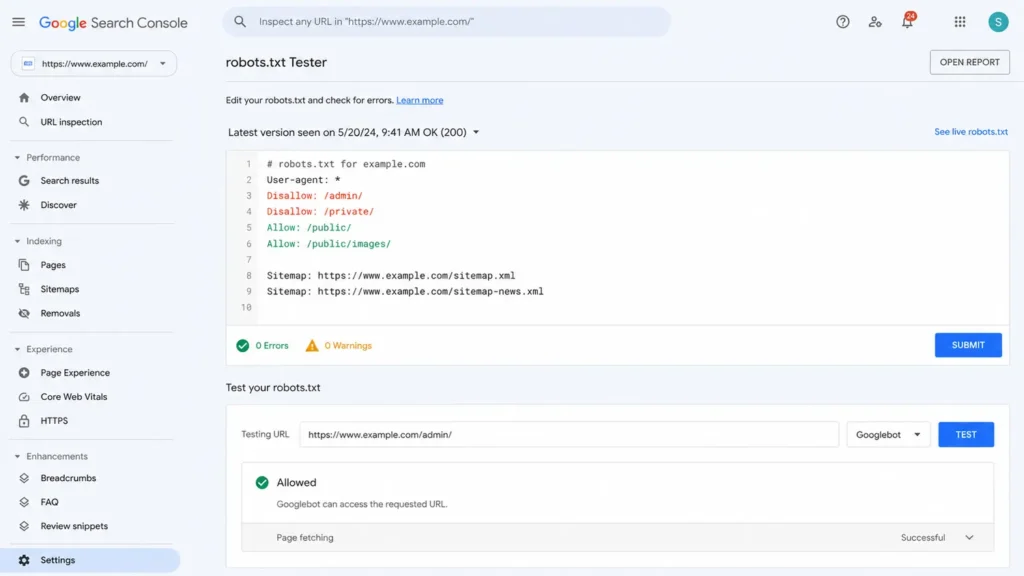
Run this test on your most important pages: homepage, core service pages, and blog index. Run it after every robots.txt change. It takes five minutes and has prevented more than a few SEO disasters.
Screaming Frog is another reliable option for auditing at scale. Run a crawl and filter for pages with “blocked by robots.txt” status to see exactly which URLs your current rules are excluding.
After any significant site change (new CMS, site migration, template update) treat robots.txt as the first thing to check, not an afterthought.
Robots.txt on WordPress
WordPress generates a virtual robots.txt file automatically if you don’t have a physical one. The default file allows all crawlers and is mostly harmless, but it won’t include your sitemap or any custom rules you might need.
The two most common robots.txt plugins for WordPress are Yoast SEO and Rank Math. Both let you edit your robots.txt file directly from the WordPress dashboard and automatically add your sitemap URL. Yoast’s file is editable under SEO > Tools > File editor. RankMath SEO> General Settings> Edit robots.txt
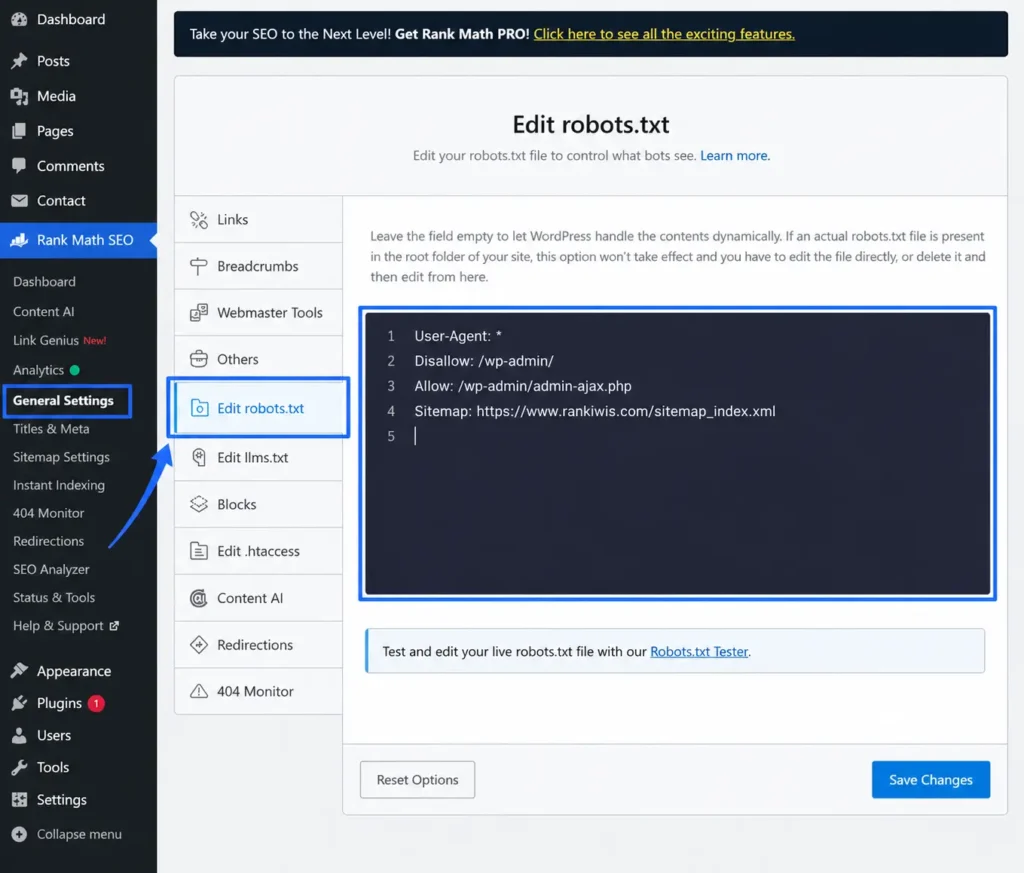
For most WordPress websites, the ideal starting point is the full template in the “Should You Block AI Crawlers?” section above. At a minimum, your WordPress robots.txt should include:
User-agent: *
Disallow: /wp-admin/
Allow: /wp-admin/admin-ajax.php

Sitemap: https://www.yourdomain.com/sitemap_index.xml
This blocks the admin area (where no crawler should go) while allowing the AJAX file that some WordPress features depend on. The sitemap line points crawlers to your full content map. Add the AI crawler blocks from the template above if you want explicit control over AI engine access.
What to avoid on WordPress:
- Blocking
/wp-content/: This prevents Google from accessing your theme CSS, JS, and media files - Blocking
/wp-includes/: same problem, different folder - Leaving
Disallow: /in a file copied over from a staging environment
The staging-environment issue is so common on WordPress that it’s worth making robots.txt one of the first things you check after any migration or theme switch. One misplaced line has cost many WordPress site owners months of organic traffic recovery time.
Frequently Asked Questions
Does robots.txt prevent a page from appearing in Google?
Not reliably. Robots.txt blocks crawling, not indexing. Google can still discover a disallowed URL through external links and show it in search results, often without a description. To keep a page out of search results, use a noindex meta tag and keep the page crawlable.
Where should I put my robots.txt file?
Place it in the root directory of your domain at yourdomain.com/robots.txt. It must be at the root, not in a subfolder. If you have multiple subdomains, each needs its own robots.txt file.
Does every website need a robots.txt file?
No. If you have a simple site with no sensitive pages, no admin directories exposed to the web, and no duplicate content issues from URL parameters, you can leave the default (allow everything) in place. A missing robots.txt isn’t an SEO problem. A badly written one is.
Can I block specific bots while allowing Google?
Yes. Use separate user-agent blocks for each crawler you want to treat differently. Just make sure you have the exact user-agent string. A wrong string means the rule does nothing.
What happens if my robots.txt file has a syntax error?
Most major crawlers will either ignore the file or apply only the rules they can parse. Google Search Console flags syntax errors in the robots.txt report. Test your file after every change.
How quickly does Google update after I change robots.txt?
Google typically recrawls robots.txt within a day or two. Once the new rules are live, previously blocked pages will start to get crawled again, but re-indexing the content takes longer. Submit your sitemap in Google Search Console to speed up the process after a major change.
Get the rest of your technical SEO foundations right. The technical SEO guide for beginners covers crawlability, site architecture, structured data, and everything else that sits underneath your content strategy. If you want help auditing your robots.txt or fixing a crawling issue, get in touch with the Rankiwis team.