AI assistants like ChatGPT, Claude, Gemini, and Perplexity now read websites to answer questions. llms.txt is a proposed standard that gives these tools a short, plain-language map of your most important pages, so they can find and understand your best content faster.
This guide explains what an llms.txt file is, what it can and can’t do, and exactly how to add one to WordPress, Shopify, or any other website, with a template you can copy.
What Is an llms.txt File?
An llms.txt file is a Markdown text file placed at the root of your website (yoursite.com/llms.txt) that lists your most important pages with short descriptions. It was proposed in September 2024 by Jeremy Howard of Answer.AI as a way to help large language models understand a site’s key content without crawling every page.
The format is simple. It starts with your site name as a heading, adds a short summary, then lists links grouped under section headings. Here’s an example:
# Rankiwis

> Rankiwis publishes practical guides on SEO, GEO, paid ads, and analytics for small businesses and marketers.

## Core guides
- [Ultimate Guide to SEO](https://www.rankiwis.com/ultimate-guide-to-seo/): A complete beginner guide to on-page, technical, and off-page SEO.
- [What Is GEO?](https://www.rankiwis.com/what-is-geo-generative-engine-optimization/): How to get cited in AI search answers.

## Services
- [Contact](https://www.rankiwis.com/contact/): Book an SEO or paid ads consultation.

## Optional
- [Blog](https://www.rankiwis.com/seo-update/): All articles.
The proposal also describes an optional llms-full.txt file that contains the full text of your key pages in one document.
llms.txt vs robots.txt vs XML Sitemaps
| robots.txt | XML sitemap | llms.txt | |
|---|---|---|---|
| Main reader | Search and AI crawlers | Search engines | AI models and assistants |
| Purpose | Allow or block crawling | List every page you want indexed | Highlight and explain your best pages |
| Format | Plain-text rules | XML | Markdown with links and descriptions |
| Controls access? | Yes | No | No |
| Official standard? | Yes | Yes | No, still a proposal |
In short: robots.txt controls access, an XML sitemap lists everything, and llms.txt curates and explains your most useful content. To block AI crawlers like GPTBot, you still need robots.txt.
Do AI Tools Actually Use llms.txt?
Here’s the honest answer: adoption is limited so far. No major AI company has confirmed that its search or answer engine reads llms.txt when it builds answers, and Google has said it doesn’t use the file for Search. Some AI coding tools and documentation sites do use llms.txt, and many developer platforms publish one.
So why add one? It takes about 15 minutes, costs nothing, and does no harm. If AI tools adopt it more widely, you’re ready. Just don’t treat it as a ranking shortcut. Clear content, strong E-E-A-T, and good structure matter far more for AI visibility. Our guide to generative engine optimization covers what really moves the needle.
How to Write a Good llms.txt File
- Name the file exactly llms.txt, in lowercase. Many servers treat file names as case-sensitive.
- Start with an H1 (# Your Site Name), then a one-line summary in a blockquote (>).
- Group links under H2 sections such as Core guides, Products, Services, and Docs.
- Add a short description after each link explaining what the page covers.
- Keep it focused. List your 10 to 30 most useful pages, not every URL.
- Use an “Optional” section for secondary pages AI tools can skip.
- Never include private pages, staging URLs, or anything behind a login.
- Update it when you publish or retire key pages.
How to Add llms.txt to WordPress
Method 1: Use Your SEO Plugin
Recent versions of Yoast SEO and Rank Math include llms.txt features that build the file for you and serve it at the root of your site. Check your plugin’s settings or feature list for an llms.txt option, turn it on, choose which pages to include, and save.
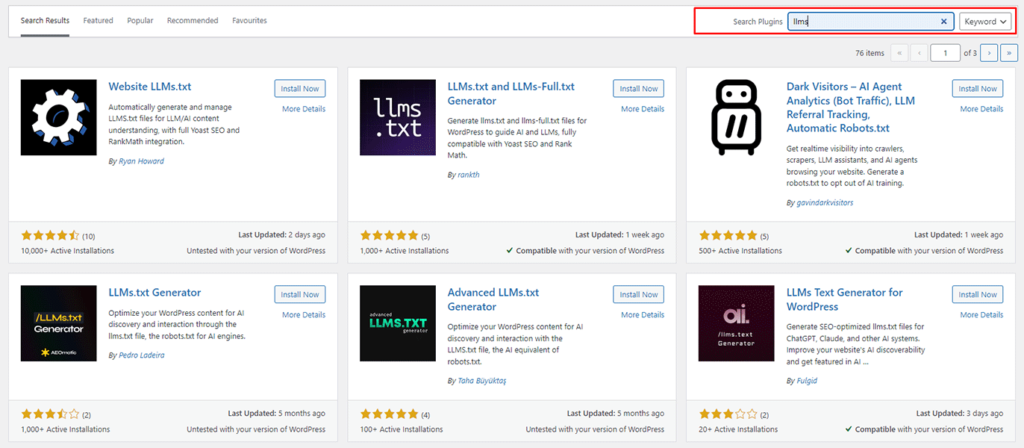
Method 2: Use a Dedicated Plugin
- Go to Plugins > Add New in your WordPress dashboard.
- Search for “llms.txt” and compare the options by rating, installs, and last update.
- Install and activate your choice.
- Paste or generate your content in the plugin’s settings page and save.
Method 3: Upload the File Manually
- Create the file in a plain text editor (Notepad on Windows, TextEdit in plain text mode on Mac) and save it as llms.txt.
- Open your host’s File Manager (in cPanel or hPanel) or connect by FTP.
- Upload llms.txt to the root folder, usually public_html, the same folder that holds wp-config.php.
Check That It Works
Visit https://yoursite.com/llms.txt in your browser. You should see your plain text. A 404 error usually means the file isn’t in the root folder or the name has a typo. Clear your cache too, especially with a caching plugin or CDN.
How to Add llms.txt to Shopify
Shopify doesn’t let you upload files directly to your store’s root, so you need a workaround.
Method 1: Use a Shopify App
- Open the Shopify App Store and search for “llms.txt.”
- Compare apps by reviews, pricing, and how they serve the file.
- Install the app and follow its setup to generate your file.
- Visit yourstore.com/llms.txt to confirm it loads.

Method 2: Upload the File and Add a Redirect
- In Shopify admin, go to Content > Files and upload your llms.txt file. Copy its file URL.
- Go to Online Store > Navigation > URL Redirects (or Settings, depending on your admin version).
- Create a redirect from /llms.txt to the file URL you copied.
- Visit yourstore.com/llms.txt to check that it redirects to your file.
A file at a theme asset or CDN path alone won’t count, because tools look for llms.txt at the root of your domain.
How to Add llms.txt to Any Other CMS
- Write the file in Markdown using the template above.
- Upload it to your site’s root directory by FTP, SFTP, or your host’s file manager.
- If your platform doesn’t allow root uploads (Wix, Squarespace, and some site builders), check for a built-in llms.txt setting or an app, or set up a redirect from /llms.txt to a hosted copy.
- Confirm it loads at yoursite.com/llms.txt.
Use a Generator to Start Faster
Several free tools, including Firecrawl’s llms.txt generator, crawl your site and draft the file for you. Always review the output. Generators often include low-value pages and write vague descriptions.
llms.txt FAQs
Do I need both robots.txt and llms.txt?
robots.txt is essential, since it controls which crawlers can access your site. llms.txt is optional. It doesn’t replace robots.txt or your XML sitemap. It simply offers AI tools a curated, plain-language guide to your most important pages.
Can llms.txt block AI tools from my site?
No. llms.txt only points AI tools toward content. It can’t block anything. To stop AI crawlers such as GPTBot, ClaudeBot, or Google-Extended, add rules for them in your robots.txt file.
Does llms.txt help Google rankings?
No. Google has said it doesn’t use llms.txt for Search rankings or AI Overviews. Treat the file as low-effort future-proofing for AI tools, and focus your SEO time on content quality, structure, and authority.
Where should the llms.txt file go?
Place it at the root of your domain so it loads at yoursite.com/llms.txt, with the file name in lowercase. A file in a subfolder, an uploads folder, or a theme asset path won’t be found by tools that follow the proposal.
Should You Add an llms.txt File?
For most sites, yes. It’s quick, free, and harmless, and it forces you to decide which pages matter most, which is a useful exercise on its own. Just keep expectations realistic. AI visibility still comes from helpful, trustworthy content that’s easy to understand.
Want to improve how AI search sees your brand? Read our guide on optimizing content for AI search, or contact the Rankiwis team for help.